

Technical specifications
File format
- Supported formats: .png or .jpg
- Resolution: Minimum of 720x480 pixels (higher resolutions preferred)
- Aspect ratio: Widescreen format, either 3:2 or 16:9
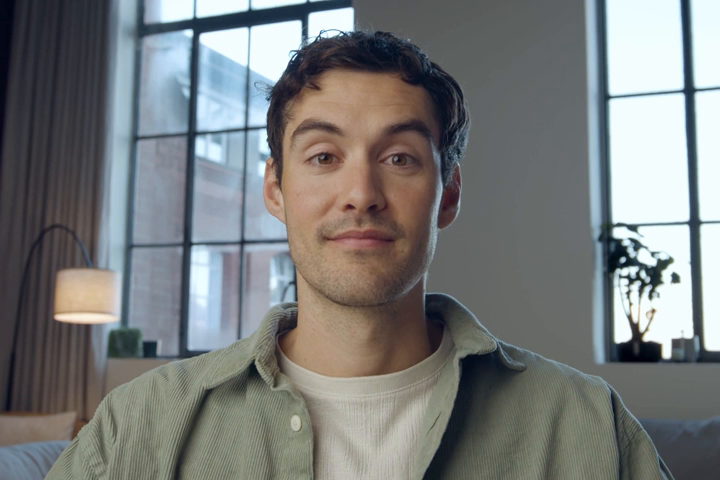
Subject pose and expression
Facial focus
The subject’s face must be in sharp focus with the following characteristics:- Gaze: Looking directly at the camera
- Camera angle: Slightly low angle so the subject appears to be looking down slightly, similar to their appearance on a video call
- Facial expression: Neutral expression required
- No extreme expressions
- Face should appear relaxed
- Mouth should be closed but not held tightly
- Pose reference: Replicate the provided reference pose as closely as possible
Framing and composition
Centering
- Horizontal: Position the subject in the center of the frame
- Vertical: Position the subject’s mouth-line at approximately 50% of the frame height
Additional framing guidelines
- Headroom: Adequate vertical space above the subject’s head, equivalent to roughly 25% of the total image height
- View: The subject’s shoulders and chest must be clearly visible in the shot
- Body orientation: The subject should be facing the camera directly
Environment and appearance
Clothing
Avoid wearing clothing with large text or distracting logos.Background
Simple, uncluttered backgrounds are preferred.Camera distance
The ideal distance between the camera and the subject is approximately 2 meters, although this may vary depending on the camera lens used.Improving jitter and lip-sync
If you experience issues with jittery shoulders or poor lip sync and expressivity, try this technique:Create initial avatar
Go to https://lab.anam.ai/avatars and click to Create Avatar.
Capture neutral frame
During step 3, the system will show you the motion of the new persona you’ve created. Pause the video on a frame with open eyes and a neutral expression.
Optional: Upscale resolution
If the resolution is low, use a tool like magnific to upscale it.