# Get your API Key
Source: https://docs.anam.ai/api-key
Your API key is used to authenticate your requests to the Anam API and is required for integrating the Personas you create into your own applications.
API keys are managed via the [Anam Lab](https://lab.anam.ai/).
### Create a new API key
From the [API keys page](https://lab.anam.ai/api-keys), click on the "Create API key" button.
The label is only used to help you identify the API key. It is not used for authentication.
Click "Create" and your new API key will be shown to you. Remember to save it somewhere safe as you will not be able to access it later.
You will be prevented from closing the dialog until you have clicked the "Copy" button.
Anam encrypts and store your API keys securely. For this reason, we are unable to recover lost API keys.
If you lose your API key, you will need to create a new key via the Anam Lab.
# Create knowledge group
Source: https://docs.anam.ai/api-reference/create-knowledge-group
openapi.json post /v1/knowledge/groups
Create a new knowledge group
# Create LLM
Source: https://docs.anam.ai/api-reference/create-llm
openapi.json post /v1/llms
Create a new LLM configuration
# Create one-shot avatar
Source: https://docs.anam.ai/api-reference/create-one-shot-avatar
openapi.json post /v1/avatars
Create a new one-shot avatar from an image file or image URL. This API is only available for enterprise and pro plans.
# Create persona
Source: https://docs.anam.ai/api-reference/create-persona
openapi.json post /v1/personas
Create a new persona
# Create session token
Source: https://docs.anam.ai/api-reference/create-session-token
openapi.json post /v1/auth/session-token
Create a new session token used to initialise the anam client
# Create share link
Source: https://docs.anam.ai/api-reference/create-share-link
openapi.json post /v1/share-links
Create a new share link
# Create tool
Source: https://docs.anam.ai/api-reference/create-tool
openapi.json post /v1/tools
Create a new tool
# Create voice
Source: https://docs.anam.ai/api-reference/create-voice
openapi.json post /v1/voices
Create a new voice by cloning from an audio file
# Delete avatar
Source: https://docs.anam.ai/api-reference/delete-avatar
openapi.json delete /v1/avatars/{id}
Delete an avatar by ID
# Delete document
Source: https://docs.anam.ai/api-reference/delete-document
openapi.json delete /v1/knowledge/documents/{id}
Delete a document from a RAG group
# Delete knowledge group
Source: https://docs.anam.ai/api-reference/delete-knowledge-group
openapi.json delete /v1/knowledge/groups/{id}
Delete a RAG group
# Delete LLM
Source: https://docs.anam.ai/api-reference/delete-llm
openapi.json delete /v1/llms/{id}
Delete an LLM configuration
# Delete persona
Source: https://docs.anam.ai/api-reference/delete-persona
openapi.json delete /v1/personas/{id}
Delete a persona by id
# Delete share link
Source: https://docs.anam.ai/api-reference/delete-share-link
openapi.json delete /v1/share-links/{id}
Delete a share link by ID
# Delete tool
Source: https://docs.anam.ai/api-reference/delete-tool
openapi.json delete /v1/tools/{id}
Delete a tool
# Delete voice
Source: https://docs.anam.ai/api-reference/delete-voice
openapi.json delete /v1/voices/{id}
Delete a voice by ID
# Get avatar by ID
Source: https://docs.anam.ai/api-reference/get-avatar-by-id
openapi.json get /v1/avatars/{id}
Returns an avatar by ID
# Get document
Source: https://docs.anam.ai/api-reference/get-document
openapi.json get /v1/knowledge/documents/{id}
Get a single document by ID
# Get knowledge group
Source: https://docs.anam.ai/api-reference/get-knowledge-group
openapi.json get /v1/knowledge/groups/{id}
Get a single RAG group by ID
# Get LLM
Source: https://docs.anam.ai/api-reference/get-llm
openapi.json get /v1/llms/{id}
Get a specific LLM by ID
# Get persona
Source: https://docs.anam.ai/api-reference/get-persona
openapi.json get /v1/personas/{id}
Returns a persona by id
# Get session
Source: https://docs.anam.ai/api-reference/get-session
openapi.json get /v1/sessions/{id}
Returns a session by ID
# Get share link
Source: https://docs.anam.ai/api-reference/get-share-link
openapi.json get /v1/share-links/{id}
Returns a share link by ID
# Get tool
Source: https://docs.anam.ai/api-reference/get-tool
openapi.json get /v1/tools/{id}
Get a tool by ID
# Get voice
Source: https://docs.anam.ai/api-reference/get-voice
openapi.json get /v1/voices/{id}
Returns a voice by ID
# List avatars
Source: https://docs.anam.ai/api-reference/list-avatars
openapi.json get /v1/avatars
Returns a list of all avatars with pagination support
# List group documents
Source: https://docs.anam.ai/api-reference/list-group-documents
openapi.json get /v1/knowledge/groups/{id}/documents
Get all documents in a RAG group
# List knowledge groups
Source: https://docs.anam.ai/api-reference/list-knowledge-groups
openapi.json get /v1/knowledge/groups
Returns a list of all knowledge groups for the organization
# List LLMs
Source: https://docs.anam.ai/api-reference/list-llms
openapi.json get /v1/llms
Returns a list of all LLMs available to the organization
# List personas
Source: https://docs.anam.ai/api-reference/list-personas
openapi.json get /v1/personas
Returns a list of all personas with pagination support
# List sessions
Source: https://docs.anam.ai/api-reference/list-sessions
openapi.json get /v1/sessions
Returns a list of all sessions for the organization
# List share links
Source: https://docs.anam.ai/api-reference/list-share-links
openapi.json get /v1/share-links
Returns a list of all share links for the organization
# List tools
Source: https://docs.anam.ai/api-reference/list-tools
openapi.json get /v1/tools
Returns a list of all tools for the organization
# List voices
Source: https://docs.anam.ai/api-reference/list-voices
openapi.json get /v1/voices
Returns a list of all voices with pagination support
# Search knowledge group
Source: https://docs.anam.ai/api-reference/search-knowledge-group
openapi.json post /v1/knowledge/groups/{id}/search
Search for similar content in a RAG group using vector similarity
# Update avatar
Source: https://docs.anam.ai/api-reference/update-avatar
openapi.json put /v1/avatars/{id}
Update an avatar by ID (only display name can be updated)
# Update document
Source: https://docs.anam.ai/api-reference/update-document
openapi.json put /v1/knowledge/documents/{id}
Update a document (rename)
# Update knowledge group
Source: https://docs.anam.ai/api-reference/update-knowledge-group
openapi.json put /v1/knowledge/groups/{id}
Update a RAG group
# Update LLM
Source: https://docs.anam.ai/api-reference/update-llm
openapi.json put /v1/llms/{id}
Update an LLM configuration
# Update persona
Source: https://docs.anam.ai/api-reference/update-persona
openapi.json put /v1/personas/{id}
Update a persona by id
# Update share link
Source: https://docs.anam.ai/api-reference/update-share-link
openapi.json put /v1/share-links/{id}
Update a share link by ID
# Update tool
Source: https://docs.anam.ai/api-reference/update-tool
openapi.json put /v1/tools/{id}
Update a tool
# Update voice
Source: https://docs.anam.ai/api-reference/update-voice
openapi.json put /v1/voices/{id}
Update a voice by ID (display name and provider model ID can be updated)
# Upload document
Source: https://docs.anam.ai/api-reference/upload-document
openapi.json post /v1/knowledge/groups/{id}/documents
Upload a document to a RAG group (Supports TXT, MD, DOCX, CSV up to 50MB)
# Changelog
Source: https://docs.anam.ai/changelog
New features, improvements, and fixes
## 🎥 Livekit out of Beta and new latency record
LiveKit integration is now generally available: drop Anam’s expressive real-time avatars into any LiveKit Agents app so your AI can join LiveKit rooms as synchronised voice + video participants.\
It turns voice-only agents into face-and-voice experiences for calls, livestreams, and collaborative WebRTC spaces, with LiveKit handling infra and Anam handling the human layer. Docs
***
## ⚡ Record-breaking latency: 330 ms decrease in latency for all customers
Server-side optimisations cuts average end-to-end latency by 330 ms for all customers, thanks to cumulative engine optimisations across transcription, frame generation, and frame writing, plus upgraded Deepgram Flux endpointing for faster, best in class turn-taking without regressions in voice quality or TTS.
***
## Lab Changes
**Improvements**
• Overhaul to avatar video upload and management system
• Upgraded default Cartesia voices to Sonic 3
• Standardised voice model selection across the platform
**Fixes**
• Enhanced share link management capabilities
• Corrected LiveKit persona type identification logic
***
## Persona Changes
**Improvements**
• Server-side optimisations to our frame buffering to reduce latency of responses by \~250ms for all personas.
**Fixes**
• Changed timeout behavior to never time out based on heartbeats; only time out when websocket is disconnected for 10 seconds or more.
• Fixed intermittent issue where persona stopped responding
• Set pix\_fmt for video output, moving from yuvj420p (JPEG) to yuv420 color space to avoid incorrect encoding/output.
• Added timeout in our silence breaking logic to prevent hangs.
## 🚀 Introducing Anam Agents
Build and deploy AI agents in Anam that can engage alongside you.
With Anam Agents, your Personas can now interact with your applications, access your knowledge, and trigger workflows directly through natural conversation. This marks Anam's evolution from conversational Personas to agentic Personas that think, decide, and execute.
## Knowledge Tools
Give your Personas access to your company's knowledge. Upload docs to the Lab, and they'll use semantic retrieval to integrate the right info.\
[Docs for Knowledge Base](https://docs.anam.ai/concepts/knowledge-base)
## Client Tools
Personas can control your interface in real time—open checkout, display modals, navigate UI, and update state by voice.\
[Docs for Client Tools](https://docs.anam.ai/concepts/tools)
## Webhook Tools
Connect your Personas to external APIs and services. Create tickets, fetch status, update records, or fetch live data.\
[Docs for Webhook Tools](https://docs.anam.ai/concepts/tools)
## Intelligent Tool Selection
Each Persona's LLM chooses tools based on intent—not scripts.
You can create/manage tools on the Tools page in the Lab and attach them to any Persona from Build.
**Anam Agents are available in beta for all users:** [https://lab.anam.ai/login](https://lab.anam.ai/login)
***
## Lab Changes
**Improvements**
* Cartesia Sonic-3 voices: the most expressive TTS model.
* Voice modal expanded: 50+ languages, voice samples, Cartesia TTS now default.
* Session reports work for custom LLMs.
**Fixes**
* Prevented auto-logout when switching contexts.
* Fixed race conditions in cookie handling.
* Resolved legacy session token issues.
* Removed problematic voices.
* Corrected player/stream aspect ratios on mobile.
## Persona Changes
**Improvements**
* Deepgram Flux support for turn-taking ([Deepgram Flux Details](https://deepgram.com/learn/introducing-flux-conversational-speech-recognition))
* Server-side optimization: reduced GIL contention and latency, faster connections.
**Fixes**
* Bug-fix for dangling LiveKit connections.
## Research
**Improvements**
* Our first open-source library!\
Metaxy, a metadata layer for ML/data pipelines:\
[Read more](https://anam-org.github.io/metaxy/main/#3-run-user-defined-computation-over-the-metadata-increment) | [GitHub](https://github.com/anam-org/metaxy)
## 🛡️ Anam is now HIPAA compliant
A big milestone for our customers and partners. Anam now meets HIPAA requirements for handling protected health information.
[**Learn more at the Anam Trust Center**](https://trust.anam.ai/)
## Lab Changes
**Improvements**
* Enhanced voice selection: search by use case/conversational style, 50+ languages.
* Product tour update.
* Streamlined One-Shot avatar creation.
* Auto-generated Persona names based on selected avatar.
* Session start now 1.1s faster.
**Fixes**
* Share links: fixed extra concurrency slot usage.
## Persona Changes
**Improvements**
* Improved TTS pronunciation via smarter text chunking.
* Traceability and monitoring for session IDs.
* Increased internal audio sampling rate to 24kHz.
* Increased max websocket size to 16Mb.
**Fixes**
* Concurrency calculation now only considers sessions from last 2 hours.
* Less freezing for slower LLMs.
## 📊 Session Analytics
Once a conversation ends, how do you review what happened? To help you understand and improve your Persona's performance, we're launching Session Analytics in the Lab. Now you can access a detailed report for every conversation, complete with a full transcript, performance metrics, and AI-powered analysis.
* **Full Conversation Transcripts.** Review every turn of a conversation with a complete, time-stamped transcript. See what the user said and how your Persona responded, making it easy to diagnose issues and identify successful interaction patterns.
* **Detailed Analytics & Timeline.** Alongside the transcript, a new Analytics tab provides key metrics grouped into "Transcript Metrics" (word count, turns) and "Processing Metrics" (e.g., LLM latency). A visual timeline charts the entire conversation, showing who spoke when and highlighting any technical warnings.
* **AI-Powered Insights.** For a deeper analysis, you can generate an AI-powered summary and review key insights. This feature, currently powered by gpt-5-mini, evaluates the conversation for highlights, adherence to the system prompt, and user interruption rates.
You can find your session history on the Sessions page in the Lab. Click on any past session to explore the new analytics report. This is available today for all session types, except for LiveKit sessions. For privacy-sensitive applications, session logging can be disabled via the SDK.
## Lab Changes
**Improvements**
* Improved Voice Discovery: The Voices page has been updated to be more searchable, allowing you to preview voices with a single click, and view new details like gender, TTS-model and language.
**Fixes**
* Fixed share-link session bug: Fixed bug of share-link sessions taking an extra concurrency slot.
## Persona Changes
**Improvements**
* Small improvement to connection time: Tweaks to how we perform webrtc signalling which allows for slightly faster connection times (\~900ms faster for p95 connection time).
* Improvement to output audio quality for poor connections: Enabled Opus in-band FEC to improve audio quality under packet loss.
* Small reduction in network latency: Optimisations have been made to our outbound media streams to reduce A/V jitter (and hence jitter buffer delay). Expected latency improvement is modest (\<50ms).
**Fixes**
* Fix for livekit sessions with slow TTS audio: Stabilizes LiveKit streaming by pacing output and duplicating frames during slowdowns to prevent underflow.
## ⚡ Intelligent LLM Routing for Faster Responses
The performance of LLM endpoints can be highly variable, with time-to-first-token latencies sometimes fluctuating by as much as 500ms from one day to the next depending on regional load. To solve this and ensure your personas respond as quickly and reliably as possible, we've rolled out a new intelligent routing system for LLM requests. This is active for both our turnkey customers and for customers using their own server-side **Custom LLMs** if they deploy multiple endpoints.
This new system constantly monitors the health and performance of all configured LLM endpoints by sending lightweight probes at regular intervals. Using a time-aware moving average, it builds a real-time picture of network latency and processing speed for each endpoint. When a request is made, the system uses this data to calculate the optimal route, automatically shedding load from any overloaded or slow endpoints within a region.
## Lab Changes
**Improvements**
* Generate one-shot avatars from text prompts: You can now generate one-shot avatars from text prompts within the lab, powered by Gemini's new Nano Banana model. The one-shot creation flow has been redesigned for speed and ease-of-use, and is now available to all plans. Image upload and webcam avatars remain exclusive to Pro and Enterprise.
* Improved management of published embed widgets: Published embed widgets can now be configured and monitored from the lab at [https://lab.anam.ai/personas/published](https://lab.anam.ai/personas/published).
## Persona Changes
**Improvements**
* Automatic failover to backup data centres: To ensure maximum uptime and reliability for our personas, we've implemented automatic failover to backup data centres.
**Fixes**
* Prevent session crash on long user speech: Previously, unbroken user speech exceeding 30 seconds would trigger a transcription error and crash the session. We now automatically truncate continuous speech to 30 seconds, preventing sessions from failing in these rare cases.
* Allow configurable session lengths of up to 2 hours for Enterprise plans: We had a bug where sessions had a max timeout of 30 mins instead of 2 hours for enterprise plans. This has now been fixed.
* Resolved slow connection times caused by incorrect database region selection: An undocumented issue with our database provider led to incorrect region selection for our databases. Simply refreshing our credentials resolved the problem, resulting in a \~1s improvement in median connection times and \~3s faster p95 times. While our provider works on a permanent fix, we're actively monitoring for any recurrence.
## 🔌 Embed Widget
Embed personas directly into your website with our new widget. Within the **lab's build page** click Publish then generate your unique html snippet. This snippet will work in most common website builders, eg Wordpress.org or SquareSpace.
For added security we recommend adding a whitelist with your domain url. This will lock down the persona to only work on your website. You can also cap the number of sessions or give the widget an expiration period.
## Lab Changes
**Improvements**
* ONE-SHOT avatars available via API: Professional and Enterprise accounts can now create one-shot avatars via API. Docs **here**.
* Spend caps: It's now possible to set a spend cap on your account. Available in **profile settings**.
## Persona Changes
**Fixes**
* Prevent Cartesia from timing out when using slow custom LLMs: We've added a safeguard to prevent Cartesia contexts from unexpectedly closing during pauses in text streaming. With slower llms or if there's a break or slow-down in text being sent, your connection will now stay alive, ensuring smoother, uninterrupted interactions.
For full legal and policy information, see:
* [Trust Center](https://trust.anam.ai/)
* [AI Governance](https://anam.ai/ai-governance)
* [Terms of Service](https://anam.ai/terms-of-service)
* [DPA](https://anam.ai/data-processing)
* [Acceptable Use Policy](https://anam.ai/acceptable-use-policy)
* [Privacy Policy](https://anam.ai/privacy-policy)
# Community SDKs
Source: https://docs.anam.ai/community/sdks
This page lists SDKs, libraries, and tools developed by our community. They can help you integrate Anam into a wider variety of platforms and frameworks.
**Disclaimer:** The projects listed below are not officially maintained or supported by Anam. They are provided as-is. While we're excited to see the community build with our API, we cannot guarantee the functionality, security, or maintenance of these packages. Please use them at your own discretion and report any issues directly to the project's maintainer on GitHub.
## SDKs
An unofficial, community-maintained Flutter SDK created by Stu Kennedy. Enables integration of Anam personas into mobile applications built with Flutter.
## Contributing
Have you built a tool, library, or integration for Anam? Please reach out to us at [info@anam.ai](mailto:info@anam.ai).
# Authentication
Source: https://docs.anam.ai/concepts/authentication
Secure your API keys and manage session tokens
Anam uses a two-tier authentication system to keep your API keys secure while enabling real-time client connections.
## Tier 1: API Key
Your API key is used to authenticate your requests to the Anam API. It is a secret key that is used to sign your requests and is stored on your server.
**Never expose your API key on the client side**. It should only exist in your
server environment.
### Getting Your API Key
See the [API key page](/api-key) for details on how to get your API key from the Anam Lab.
## Tier 2: Session Tokens
Session tokens are temporary credentials that allow your client applications to connect directly to Anam's streaming infrastructure while keeping your API keys secure.
### How Session Tokens Work
Your server requests a session token from Anam using your API key and
persona configuration
Anam generates a temporary token tied to your specific persona configuration
Your client uses the session token with the Anam SDK to establish a direct
WebRTC connection
Once connected, the client can send messages and receive video/audio streams
directly
### Basic Token Creation
Below is a basic express server example that exposes a single endpoint which a client application can use to create a session token.
```javascript server.js theme={"dark"}
const express = require("express");
const app = express();
app.post("/api/session-token", async (req, res) => {
try {
const response = await fetch("https://api.anam.ai/v1/auth/session-token", {
method: "POST",
headers: {
"Content-Type": "application/json",
Authorization: `Bearer ${process.env.ANAM_API_KEY}`,
},
body: JSON.stringify({
personaConfig: {
name: "Cara",
avatarId: "30fa96d0-26c4-4e55-94a0-517025942e18",
voiceId: "6bfbe25a-979d-40f3-a92b-5394170af54b",
llmId: "0934d97d-0c3a-4f33-91b0-5e136a0ef466",
systemPrompt: "You are a helpful assistant.",
},
}),
});
const { sessionToken } = await response.json();
res.json({ sessionToken });
} catch (error) {
res.status(500).json({ error: "Failed to create session" });
}
});
```
### Advanced Token Creation
Instead of using the same persona configuration for all users, you can utilise context to create different persona configurations for different situations.
#### Pattern 1: User-based Personalization
For applications with different user types or preferences:
```javascript theme={"dark"}
app.post("/api/session-token", authenticateUser, async (req, res) => {
const user = req.user;
const personaConfig = {
name: `Persona for user: ${user.id}`,
avatarId: user.preferredAvatar || defaultAvatarId,
voiceId: user.preferredVoice || defaultVoiceId,
llmId: user.preferredllmId || "0934d97d-0c3a-4f33-91b0-5e136a0ef466",
systemPrompt: buildPersonalizedPrompt(user),
};
const sessionToken = await fetchAnamSessionToken(personaConfig);
res.json({ sessionToken });
});
```
### Pattern 2: Context-aware Sessions
For applications where the persona changes based on context:
```javascript theme={"dark"}
app.post("/api/session-token", authenticateUser, async (req, res) => {
const { context, metadata } = req.body;
let personaConfig;
switch (context) {
case "customer-support":
personaConfig = buildSupportPersona(metadata);
break;
case "sales":
personaConfig = buildSalesPersona(metadata);
break;
case "training":
personaConfig = buildTrainingPersona(metadata);
break;
default:
personaConfig = defaultPersonaConfig;
}
const sessionToken = await fetchAnamSessionToken(personaConfig);
res.json({ sessionToken });
});
```
## Error Handling
Common authentication errors and how to handle them:
```javascript theme={"dark"}
app.post("/api/session-token", async (req, res) => {
try {
const response = await fetch("https://api.anam.ai/v1/auth/session-token", {
// ... config
});
if (!response.ok) {
const errorData = await response.json();
switch (response.status) {
case 401:
console.error("Invalid API key");
return res.status(500).json({ error: "Authentication failed" });
case 400:
console.error("Invalid persona config:", errorData);
return res.status(400).json({ error: "Invalid configuration" });
default:
console.error("Unexpected error:", errorData);
return res.status(500).json({ error: "Service unavailable" });
}
}
const { sessionToken } = await response.json();
res.json({ sessionToken });
} catch (error) {
console.error("Network error:", error);
res.status(500).json({ error: "Network error" });
}
});
```
## Environment Setup
Store your API key securely:
```bash .env theme={"dark"}
ANAM_API_KEY=your-api-key-here
NODE_ENV=production
```
```javascript config.js theme={"dark"}
const config = {
anamApiKey: process.env.ANAM_API_KEY,
anamApiUrl: process.env.ANAM_API_URL || "https://api.anam.ai",
};
if (!config.anamApiKey) {
throw new Error("ANAM_API_KEY environment variable is required");
}
module.exports = config;
```
## Next Steps
Create and customize your first persona
Learn more about token lifecycle and management
Secure your production deployment
Handle authentication and connection errors
# Custom LLMs
Source: https://docs.anam.ai/concepts/custom-llms
Use your own language models with Anam's digital personas
# Custom LLMs
Anam now supports integration with custom Large Language Models (LLMs), giving you complete control over the AI powering your digital personas. This feature enables you to use your own models while benefiting from Anam's persona, voice, and streaming infrastructure.
Custom LLMs are processed directly from Anam's servers, improving latency and
simplifying your development workflow. All API credentials you provide are
encrypted for security.
## How Custom LLMs Work
When you create a custom LLM configuration in Anam:
1. **Model Registration**: You register your LLM details with Anam, including the model endpoint and authentication credentials
2. **Server-Side Processing**: Anam handles all LLM calls from our servers, reducing latency and complexity
3. **Secure Storage**: Your API keys and credentials are encrypted and securely stored
4. **Seamless Integration**: Use your custom LLM ID in place of Anam's built-in models
## Creating a Custom LLM
To create a custom LLM, you'll need to:
1. Register your LLM configuration through the Anam API or dashboard
2. Provide the necessary connection details (endpoint, API keys, model parameters)
3. Receive a unique LLM ID for your custom model
4. Use this ID when creating session tokens
Custom LLM creation API endpoints and dashboard features are coming soon.
Contact [support@anam.ai](mailto:support@anam.ai) for early access.
## Supported LLM Specifications
Anam supports custom LLMs that comply with one of the following API specifications:
* **OpenAI API Specification** - Compatible with OpenAI's chat completion endpoints
* **Azure OpenAI API Specification** - Compatible with Azure's OpenAI service endpoints
* **Gemini API Specification** - Compatible with Google's Gemini API endpoints
Your custom LLM must support streaming responses. Non-streaming LLMs will not
work with Anam's real-time persona interactions.
## Specifying Multiple Endpoints
Anam allows you to specify multiple endpoints per LLM. The Anam backend will automatically route to the fastest available LLM from the data centre where the Anam engine is running, and fallback to other endpoints in the case of an error.
To ensure routing selects the fastest available endpoint, Anam may occasionally send small probe prompts to your configured endpoints. These only occur while sessions are active for that LLM, and are lightweight—around 1500 tokens in size. Probes are infrequent (a few times per hour at most), have no effect on active conversations, and exist solely to maintain reliable performance.
### Technical Requirements
Your LLM server must implement one of the supported API specifications mentioned above. This includes:
* Matching the request/response format
* Supporting the same authentication methods
* Implementing compatible endpoint paths
Enable streaming responses in your LLM implementation: - Return responses with
`stream: true` support - Use Server-Sent Events (SSE) for streaming chunks -
Include proper content types and formatting
When you add your LLM in the Anam Lab, automatic tests verify:
* API specification compliance
* Streaming functionality
* Response format compatibility
* Authentication mechanisms
The Lab will provide feedback if your LLM doesn't meet the requirements, helping you identify what needs to be fixed.
**Testing Tip**: We recommend using `curl` commands to compare your custom
LLM's raw HTTP responses with those from the actual providers (OpenAI, Azure
OpenAI, or Gemini). Client libraries like the OpenAI SDK often transform
responses and extract specific values, which can mask differences in the
actual HTTP response format. Your custom implementation must match the raw
HTTP response structure, not the transformed output from client libraries.
### Example Custom LLM Endpoints
If you're building your own LLM server, ensure your endpoints match one of these patterns:
```bash OpenAI Spec theme={"dark"}
POST /v1/chat/completions
Content-Type: application/json
Authorization: Bearer YOUR_API_KEY
{
"model": "your-model-name",
"messages": [...],
"stream": true
}
```
```bash Azure OpenAI Spec theme={"dark"}
POST /openai/deployments/{deployment-id}/chat/completions?api-version=2024-02-01
Content-Type: application/json
api-key: YOUR_API_KEY
{
"messages": [...],
"stream": true
}
```
```bash Gemini Spec theme={"dark"}
POST /v1beta/models/{model}:streamGenerateContent
Content-Type: application/json
x-goog-api-key: YOUR_API_KEY
{
"contents": [...],
"generationConfig": {...}
}
```
## Using Custom LLMs
Once you have your custom LLM ID, use it when requesting session tokens:
```javascript Node.js theme={"dark"}
const response = await fetch('https://api.anam.ai/v1/session-token', {
method: 'POST',
headers: {
'Content-Type': 'application/json',
'Authorization': `Bearer ${process.env.ANAM_API_KEY}`
},
body: JSON.stringify({
personaConfig: {
name: 'Sebastian',
avatarId: '30fa96d0-26c4-4e55-94a0-517025942e18',
voiceId: '6bfbe25a-979d-40f3-a92b-5394170af54b',
llmId: 'your-custom-llm-id', // Your custom LLM ID
systemPrompt: 'You are a helpful customer service representative.',
},
})
});
```
```javascript Node.js theme={"dark"}
const response = await fetch('https://api.anam.ai/v1/session-token', {
method: 'POST',
headers: {
'Content-Type': 'application/json',
'Authorization': `Bearer ${process.env.ANAM_API_KEY}`
},
body: JSON.stringify({
personaId: 'your-persona-id', // Your persona ID
})
```
## Migration from brainType
The `brainType` parameter is deprecated and has been replaced with `llmId` to
better reflect support for custom models. For backwards compatibility, you can
pass your existing `brainType` value as the `llmId` and it will continue to
work.
### Migration Guide
Replace all instances of `brainType` with `llmId` in your session token requests:
```diff theme={"dark"}
personaConfig: JSON.stringify({
- brainType: 'ANAM_GPT_4O_MINI_V1',
+ llmId: 'ANAM_GPT_4O_MINI_V1',
})
```
Your existing brain type values will work as LLM IDs: - `ANAM_GPT_4O_MINI_V1`
→ Works as `llmId` - `ANAM_LLAMA_v3_3_70B_V1` → Works as `llmId` -
`CUSTOMER_CLIENT_V1` → Works as `llmId`
Evaluate if a custom LLM would better serve your use case. Custom LLMs provide:
* Full control over model behavior
* Ability to use specialized or fine-tuned models
* Consistent persona experience with your chosen AI
## Available Built-in LLM IDs
These built-in models are available as LLM IDs:
| LLM ID | Description | Best For |
| -------------------------------------- | ------------------------- | ------------------------------------------- |
| `ANAM_GPT_4O_MINI_V1` | OpenAI GPT-4 Mini model | Available for backwards compatibility |
| `0934d97d-0c3a-4f33-91b0-5e136a0ef466` | OpenAI GPT-4.1 Mini model | Recommended for new projects |
| `ANAM_LLAMA_v3_3_70B_V1` | Llama 3.3 70B model | Open-source preference, larger context |
| `9d8900ee-257d-4401-8817-ba9c835e9d36` | Gemini 2.5 Flash model | Our fastest model |
| `CUSTOMER_CLIENT_V1` | Client-side LLM | When you only use .talk() commands to speak |
## Security Considerations
**Encryption at Rest**: All API keys and credentials are encrypted using
industry-standard encryption before storage.
**Secure Transmission**: Credentials are transmitted over HTTPS and never
exposed in logs or responses.
**Access Control**: Only your account can use your custom LLM configurations.
## Benefits of Server-Side Processing
By processing custom LLMs from Anam's servers, you get:
1. **Reduced Latency**: Direct server-to-server communication eliminates client-side round trips
2. **Simplified Development**: No need to manage LLM connections in your client code
3. **Unified Streaming**: Seamless integration with Anam's voice and video streaming
4. **Credential Security**: API keys never exposed to client-side code
5. **Automatic Scaling**: Anam handles load balancing and scaling
## Next Steps
Learn how personas work with custom language models
Setup a custom LLM in the Anam Lab
# Event Handling
Source: https://docs.anam.ai/concepts/events
React to conversation events and user interactions with Anam personas
Anam personas communicate through a rich event system that lets you respond to connection changes, conversation updates, and user interactions. Understanding these events is key to building responsive, interactive applications.
## How Events Work
The Anam SDK uses an event-driven architecture where your application can listen for specific events and react accordingly. This allows you to:
* Update your UI based on connection status
* Track conversation history in real-time
* Handle user interruptions gracefully
* Monitor stream quality and performance
Create your Anam client with a session token
Register listeners for the events you care aboutUpdate your UI and application state based on event data
Remove listeners when components unmount or sessions end
## Available Events
### Connection Events
These events track the connection lifecycle between your client and Anam's streaming infrastructure:
#### `CONNECTION_ESTABLISHED`
Fired when the WebRTC connection is successfully established.
```javascript theme={"dark"}
import { AnamEvent } from "@anam-ai/js-sdk/dist/module/types";
anamClient.addListener(AnamEvent.CONNECTION_ESTABLISHED, () => {
console.log("Connected to Anam streaming service");
updateConnectionStatus("connected");
hideLoadingSpinner();
});
```
#### `CONNECTION_CLOSED`
Fired when the connection is terminated.
```javascript theme={"dark"}
anamClient.addListener(AnamEvent.CONNECTION_CLOSED, () => {
console.log("Connection closed");
updateConnectionStatus("disconnected");
showReconnectButton();
});
```
### Video Events
#### `VIDEO_PLAY_STARTED`
Fired when the first video frames begin playing. Ideal for removing loading indicators.
```javascript theme={"dark"}
anamClient.addListener(AnamEvent.VIDEO_PLAY_STARTED, () => {
console.log("Video stream started");
hideVideoLoadingState();
showPersonaInterface();
});
```
### Conversation Events
These events help you track and respond to conversation flow:
#### `MESSAGE_HISTORY_UPDATED`
Provides the complete conversation history each time a participant finishes speaking.
```javascript theme={"dark"}
anamClient.addListener(AnamEvent.MESSAGE_HISTORY_UPDATED, (messages) => {
console.log("Conversation updated:", messages);
updateChatHistory(messages);
// Example message structure:
// [
// { role: "user", content: "Hello" },
// { role: "assistant", content: "Hi there! How can I help?" }
// ]
});
```
#### `MESSAGE_STREAM_EVENT_RECEIVED`
Provides real-time transcription updates as speech occurs.
```javascript theme={"dark"}
anamClient.addListener(AnamEvent.MESSAGE_STREAM_EVENT_RECEIVED, (event) => {
if (event.type === "persona") {
// Persona is speaking - show real-time transcription
updatePersonaTranscript(event.text);
} else if (event.type === "user") {
// User finished speaking - complete transcription
updateUserTranscript(event.text);
}
});
```
### Audio Events
#### `INPUT_AUDIO_STREAM_STARTED`
Fired when microphone input is successfully initialized.
```javascript theme={"dark"}
anamClient.addListener(AnamEvent.INPUT_AUDIO_STREAM_STARTED, (stream) => {
console.log("Microphone access granted");
showMicrophoneIndicator();
updateAudioInputStatus("active");
});
```
### Talk Stream Events
#### `TALK_STREAM_INTERRUPTED`
Fired when a user interrupts a `TalkMessageStream` by speaking.
```javascript theme={"dark"}
anamClient.addListener(AnamEvent.TALK_STREAM_INTERRUPTED, (event) => {
console.log("Talk stream interrupted:", event.correlationId);
handleStreamInterruption(event.correlationId);
stopCurrentGeneration();
});
```
### Client Tool Call Events
#### `TOOL_CALL`
Fired when the AI persona invokes a client tool, allowing your application to respond to requests for UI actions like navigation, opening modals, or updating state.
```javascript theme={"dark"}
anamClient.addListener(AnamEvent.TOOL_CALL, (event) => {
const { toolName, arguments: args } = event;
switch (toolName) {
case "navigate_to_page":
window.location.href = `/${args.page}`;
break;
case "open_modal":
openModal(args.modalType, args.data);
break;
case "update_filters":
applyFilters(args);
break;
default:
console.warn(`Unhandled tool: ${toolName}`);
}
});
```
Client tools enable voice-driven or chat-driven UI control. For a complete guide on creating and configuring client tools, see the [Client Tools Guide](/tools/client-tools).
# Knowledge Base (RAG)
Source: https://docs.anam.ai/concepts/knowledge-base
Give your AI personas access to your documents using semantic search and Retrieval-Augmented Generation
## Overview
Anam's Knowledge Base enables your AI personas to search and retrieve information from your documents using Retrieval-Augmented Generation (RAG). Instead of relying solely on the LLM's training data, your personas can access up-to-date, organization-specific information from your uploaded documents.
**Beta Feature**: Knowledge Base is currently in beta. You may encounter some
issues as we continue to improve the feature. Please report any feedback or
issues to help us make it better.
This enables personas to:
* Answer questions accurately from your documentation
* Provide information about your products, policies, or procedures
* Stay current with your latest content updates
* Ground responses in verified sources
## How It Works
Knowledge tools let your AI persona search your documents to answer questions accurately.
You upload a file using a secure and efficient three-step signed upload process.
```javascript Signed URL Upload theme={"dark"}
// Step 1: Get an upload URL from Anam
const response = await fetch(
`/v1/knowledge/groups/{folderId}/documents/presigned-upload`,
{
method: 'POST',
headers: {
'Authorization': `Bearer ${apiKey}`,
'Content-Type': 'application/json'
},
body: JSON.stringify({
filename: 'user-guide.pdf',
contentType: 'application/pdf',
fileSize: 2048000
})
}
);
const { uploadUrl, documentId } = await response.json();
// Step 2: Upload your file directly to the URL
await fetch(uploadUrl, {
method: 'PUT',
body: fileData
});
// Step 3: Confirm the upload with Anam
await fetch(`/v1/knowledge/documents/{documentId}/confirm-upload`, {
method: 'POST',
headers: {
'Authorization': `Bearer ${apiKey}`,
'Content-Type': 'application/json'
},
body: JSON.stringify({ fileSize: 2048000 })
});
```
This process stores the document and begins the processing pipeline.
A background job processes the document to make it searchable. This typically takes \~30 seconds.
Status changes to `PROCESSING`.
Once processing completes (typically \~30 seconds), the document status changes to `READY` and becomes searchable.
You can now attach this folder to knowledge tools and start searching.
Documents must be in READY status to be searchable. If a document fails
processing, its status will be set to FAILED with an error message.
## Document Processing
The system automatically processes different file types appropriately:
| File Type | How It's Processed |
| ------------------ | ------------------------------------------------ |
| PDF, TXT, MD, DOCX | Split into paragraphs for precise search results |
| CSV | Each row is searchable independently |
| JSON | Entire file kept intact |
| LOG | Each line is searchable independently |
The system automatically optimizes how your documents are processed based on
file type.
### Optimizing Document Structure
For best search results, structure your documents with:
**Clear headings and sections**:
```markdown theme={"dark"}
# Installation Guide
## Prerequisites
Before installing, ensure you have...
## Step 1: Download the software
Navigate to our downloads page...
## Step 2: Run the installer
Double-click the downloaded file...
```
**Self-contained paragraphs**:
Each paragraph should make sense independently, as it may be retrieved without surrounding context.
**Descriptive filenames**:
* ✅ `product-installation-guide.pdf`
* ✅ `billing-faq-2024.md`
* ❌ `document1.pdf`
* ❌ `untitled.txt`
## Storage Limits and Quotas
### Upload Limits
Document uploads are subject to file size and monthly storage limits based on your plan.
**Need higher limits?** Contact us about Enterprise plans with custom upload
limits tailored to your needs.
**File uploads**:
* Maximum file size per document varies by plan
* Batch uploads supported (multiple files at once)
* Storage quotas count only non-deleted documents
Deleting documents frees up quota for new uploads.
### Checking Your Usage
You can view your current usage in the Anam Lab UI at `/knowledge` or via API:
```javascript theme={"dark"}
const response = await fetch("/v1/knowledge/usage", {
headers: {
Authorization: `Bearer ${apiKey}`,
},
});
const usage = await response.json();
console.log(`Used: ${usage.totalBytes} / ${usage.quotaBytes}`);
```
## Search Performance
### How Search Works
When your AI searches documents, it finds the most relevant information to answer the user's question. The system automatically ranks results by relevance and provides the best matches to the LLM.
The AI automatically focuses on the most relevant information when generating
responses.
### Improving Search Results
**Use descriptive folder names and document titles**:
Metadata helps the system understand context.
**Keep documents focused on specific topics**:
Instead of one 500-page manual, upload focused documents on individual topics.
**Update documents regularly**:
Delete outdated documents and upload current versions.
**Organize by knowledge domain**:
Create separate folders for different areas:
* Product documentation
* FAQs
* Policies
* Troubleshooting guides
## Using Knowledge Tools
Once your documents are uploaded and processed, create knowledge tools to enable search:
```typescript theme={"dark"}
{
type: 'server',
subtype: 'knowledge',
name: 'search_product_docs',
description: 'Search product documentation when users ask technical questions about features, installation, or usage',
documentFolderIds: ['550e8400-e29b-41d4-a716-446655440000', '6ba7b810-9dad-11d1-80b4-00c04fd430c8']
}
```
Attach the tool to a persona, and the LLM will automatically invoke it when relevant:
**User**: "How do I configure SSL?"
**LLM internal process**:
1. Recognizes this is a technical question
2. Invokes `search_product_docs` with query "SSL configuration"
3. Receives relevant chunks from documentation
4. Generates response: "To configure SSL, you'll need to..."
Learn more about creating and using knowledge tools in the [Tools
documentation](/concepts/tools).
## Security and Privacy
### Organization Isolation
All knowledge base data is organization-scoped:
* Users can only access their organization's folders and documents
* API requests are filtered by organization ID at the database level
* Even with knowledge of folder IDs, users cannot access other organizations' data
Always use HTTPS for API requests. Never commit API keys to version control or
expose them client-side.
## Troubleshooting
### No Search Results
**Possible causes**:
* Documents still in PROCESSING status (wait \~30 seconds)
* Query semantically unrelated to document content
* Folder contains no READY documents
* Documents in wrong folder (check folder assignments)
**Solutions**:
1. Check document status in the UI or via API
2. Test query using debug modal (`Ctrl+Shift+K`)
3. Try rephrasing query with more specific terms
4. Verify folder contains relevant documents
### Upload Failures
**File too large** (>50MB):
* Split document into smaller files
* Remove images in PDFs
* Remove unnecessary pages
**Processing failed**:
* Check file isn't corrupted
* Verify file format is supported
* Try re-uploading the file
### Slow Processing
**Normal processing time**: 30 seconds for typical documents
**Longer processing times** may occur with:
* Very large files (40-50MB)
* Complex PDFs with many images
* High system load
You can upload multiple documents simultaneously. The system processes up to 4
documents concurrently.
## Best Practices
Create focused folders instead of dumping all documents in one place:
```
✅ Good:
├── Product Features
├── Installation Guides
└── Troubleshooting
❌ Bad:
└── All Documents
```
```
✅ Good:
- password-reset-guide.pdf
- api-authentication-v2.md
- billing-faq-2024.txt
❌ Bad:
- document.pdf
- file1.md
- untitled.txt
```
Regularly audit and update your knowledge base:
* Delete outdated documentation
* Upload new versions when content changes
* Archive superseded documents
## Next Steps
Step-by-step guide to creating folders and uploading documents
Create knowledge tools and attach them to personas
Complete API documentation for knowledge base
Learn about all available tool types
```
```
# Understanding Personas
Source: https://docs.anam.ai/concepts/personas
Learn how AI personas work and how to customize them
**Breaking Change**: The `brainType` parameter has been deprecated and replaced with `llmId` to support custom language models. For backwards compatibility, you can still pass your existing `brainType` value as `llmId`. See our [Custom LLMs guide](/concepts/custom-llms) for more details.
A persona in Anam is an AI-powered digital human that can have natural, real-time conversations with your users. Think of it as a customizable avatar with a brain, voice, and personality.
## The Persona Configuration
Every persona is defined by a configuration object that brings together three essential components. Here's what a complete persona config looks like:
```javascript theme={"dark"}
const personaConfig = {
name: "Cara",
avatarId: "30fa96d0-26c4-4e55-94a0-517025942e18",
voiceId: "6bfbe25a-979d-40f3-a92b-5394170af54b",
llmId: "0934d97d-0c3a-4f33-91b0-5e136a0ef466",
systemPrompt:
"You are Cara, a helpful customer service representative. You're friendly, knowledgeable, and always try to solve problems efficiently. Keep responses conversational and under 50 words unless explaining something complex.",
};
```
This single configuration object defines everything about your persona - how they look, sound, and behave. Let's break down each component and how it maps to the configuration.
## Anatomy of a Persona
### 1. Persona Name
**`Config field: name`**
The name of your persona. This is optional but recommended for internal organization and debugging. It doesn't affect how the persona behaves, but helps you identify different personas in logs and analytics.
```javascript {2} theme={"dark"}
const personaConfig = {
name: "Cara",
avatarId: "30fa96d0-26c4-4e55-94a0-517025942e18",
voiceId: "6bfbe25a-979d-40f3-a92b-5394170af54b",
llmId: "0934d97d-0c3a-4f33-91b0-5e136a0ef466",
systemPrompt:
"You are Cara, a helpful customer service representative. You're friendly, knowledgeable, and always try to solve problems efficiently. Keep responses conversational and under 50 words unless explaining something complex.",
};
```
### 2. Avatar (Visual Appearance)
**`Config field: avatarId`**
The face and expressions users see. You can choose from our [gallery](/resources/avatar-gallery) or create custom avatars using our one-shot avatar generator (enterprise only).
```javascript {3} theme={"dark"}
const personaConfig = {
name: "Cara",
avatarId: "30fa96d0-26c4-4e55-94a0-517025942e18",
voiceId: "6bfbe25a-979d-40f3-a92b-5394170af54b",
llmId: "0934d97d-0c3a-4f33-91b0-5e136a0ef466",
systemPrompt:
"You are Cara, a helpful customer service representative. You're friendly, knowledgeable, and always try to solve problems efficiently. Keep responses conversational and under 50 words unless explaining something complex.",
};
```
### 3. Voice (How They Sound)
**`Config field: voiceId`**
The speech synthesis that brings your persona to life. Different voices convey different personalities and work better for different use cases. You can sample some of the available voices in our [voice gallery](/resources/voice-gallery).
```javascript {4} theme={"dark"}
const personaConfig = {
name: "Cara",
avatarId: "30fa96d0-26c4-4e55-94a0-517025942e18",
voiceId: "6bfbe25a-979d-40f3-a92b-5394170af54b",
llmId: "0934d97d-0c3a-4f33-91b0-5e136a0ef466",
systemPrompt:
"You are Cara, a helpful customer service representative. You're friendly, knowledgeable, and always try to solve problems efficiently. Keep responses conversational and under 50 words unless explaining something complex.",
};
```
### 4. Brain (Intelligence & Personality)
**`Config fields: llmId and systemPrompt`**
The AI model and instructions that define how your persona thinks, responds, and behaves during conversations.
```javascript {5,6} theme={"dark"}
const personaConfig = {
name: "Cara",
avatarId: "30fa96d0-26c4-4e55-94a0-517025942e18",
voiceId: "6bfbe25a-979d-40f3-a92b-5394170af54b",
llmId: "0934d97d-0c3a-4f33-91b0-5e136a0ef466",
systemPrompt:
"You are Cara, a helpful customer service representative. You're friendly, knowledgeable, and always try to solve problems efficiently. Keep responses conversational and under 50 words unless explaining something complex.",
};
```
#### Making Your Personas Smarter
While the `llmId` and `systemPrompt` define the foundation of your persona's intelligence, you can make your personas significantly smarter and more capable by:
* [**Adding a Knowledge Base**](/concepts/knowledge-base): Give your persona access to your company's documents, FAQs, and resources so it can provide accurate, contextual information drawn from your specific content.
* [**Implementing Tool Calling**](/concepts/tools): Enable your persona to take actions and access real-time data by connecting it to external systems, databases, and APIs. This allows your persona to look up information, perform operations, and interact with your business systems dynamically.
Combining a well-crafted system prompt with knowledge bases and tool calling creates personas that are not only conversational but also deeply integrated with your business operations and information systems.
#### Available LLM IDs
Choose the LLM ID that best fits your use case and performance requirements:
**Best for: Most applications**
A fast, cost-effective brain powered by GPT-4.1 Mini. Offers excellent performance for conversational AI with quick response times and reasonable costs.
```javascript theme={"dark"}
llmId: "0934d97d-0c3a-4f33-91b0-5e136a0ef466";
```
**Best for: Custom AI integration**
Use your own custom LLM or disable Anam's built-in AI to integrate your own AI models and processing logic.
```javascript theme={"dark"}
llmId: "CUSTOMER_CLIENT_V1"; // For client-side LLM
// OR
llmId: "your-custom-llm-id"; // For custom server-side LLM
```
When using `CUSTOMER_CLIENT_V1`, you'll handle AI responses through your own backend and use Anam purely for avatar rendering and voice synthesis. See the [custom LLM guide](/examples/custom-llm) for more information.
## Experimenting with configurations
The easiest way to experiment with the available avatars, voices, and brain options is to use the playground in the [Anam Lab](https://lab.anam.ai). From the build page, you can use the settings menu to change the available options and preview over 400 available voices. When you're happy with your configuration, you can copy the avatar ID and voice ID from the settings bar to use in your own application.
## Persona Lifecycle
Understanding how personas work helps you build better experiences:
You define the persona's appearance, voice, and personality in the persona configuration object
Your server uses your API key to exchange your persona configuration for a secure session token
The client uses the session token to initialize the persona and start the session
Real-time back-and-forth communication begins between the persona and the user
The conversation concludes and the session is cleaned up
## Creating Effective Personas
Creating an effective persona requires thoughtful design across multiple dimensions. When you create a persona, the system prompt you choose defines how the persona will respond to your users. Focus on crafting a well-defined identity, personality, and communication style.
### Defining Core Identity
Your persona's identity is the foundation of its interactions. Start by clearly establishing:
* **Specific role**: What function will your persona fulfil (customer support, sales assistant, product specialist, etc.)
* **Areas of expertise**: Knowledge relevant to your business and users
* **Interaction scope**: Types of conversations it should handle
* **Clear boundaries**: Capabilities and limitations to prevent confusion
### System Prompts That Work
Your system prompt is crucial - it defines your persona's personality and behavior.
```javascript theme={"dark"}
// ❌ Too vague
systemPrompt: "You are helpful.";
// ✅ Specific and actionable
systemPrompt: `You are Marcus, a fitness coach with 10 years of experience.
You're enthusiastic but not pushy, and you always ask about injuries or
limitations before suggesting exercises. Keep responses under 50 words
unless explaining a complex exercise.`;
```
```javascript theme={"dark"}
// ❌ No personality
systemPrompt: "Answer customer service questions.";
// ✅ Clear personality and boundaries
systemPrompt: `You are Emma, a customer support specialist for SoftwareCorp.
You're patient, empathetic, and solution-focused. You can help with account
issues, billing questions, and technical troubleshooting. If you can't
solve something, always offer to escalate to a human specialist.`;
```
### Personality and Communication Style
The way your persona communicates is just as important as what it communicates. Consider:
* **Tone of voice**: Professional, friendly, casual, or authoritative
* **Communication style**: Concise vs detailed, formal vs informal
* **User addressing**: How it should greet and interact with users
* **Cultural sensitivity**: Adaptability to different user backgrounds
Your persona should maintain consistency while adapting to user needs. For example:
```javascript theme={"dark"}
systemPrompt: `You are Alex, a friendly customer service representative.
Your communication style:
- Use a warm but professional tone
- Address users respectfully
- Break down complex information into simple steps
- Always acknowledge user frustration with empathy
Example response: "I understand you're having trouble with the login process.
Let me help you resolve this step by step. First, could you tell me what
error message you're seeing?"`;
```
### Handling Different Scenarios
Guide your persona on how to handle various situations:
#### When Facing Uncertainty
```javascript theme={"dark"}
"If you're not completely sure about something, acknowledge it and ask for
clarification. It's better to say 'I want to make sure I understand your
question correctly' than to provide incorrect information."
```
#### For Complex Requests
```javascript theme={"dark"}
"Break down complex problems into smaller, manageable steps. Guide users
through the process gradually, confirming understanding at each step."
```
#### Response Structure Guidelines
```javascript theme={"dark"}
"Keep responses concise and relevant. Break down complex information into
digestible parts. Use numbered steps for procedures and bullet points for
lists of options."
```
### Testing and Refinement
Personas can be sensitive to even small changes in the system prompt. If your persona isn't performing as expected, try small incremental changes rather than major overhauls.
**Iterative improvement process:**
1. **Start simple**: Begin with basic functionality and expand gradually
2. **Use example interactions**: Include specific examples in your system prompt
3. **Monitor performance**: Track how well the persona handles real conversations
4. **Collect feedback**: Gather input from users and team members
5. **Make incremental adjustments**: Small changes often yield better results than major rewrites
## Controlling session duration
You can control how long a persona session remains active by setting the optional `maxSessionLengthSeconds` parameter in your persona configuration. This is useful for managing costs, ensuring security, or creating time-limited experiences.
```javascript theme={"dark"}
const personaConfig = {
name: "Cara",
avatarId: "30fa96d0-26c4-4e55-94a0-517025942e18",
voiceId: "6bfbe25a-979d-40f3-a92b-5394170af54b",
llmId: "0934d97d-0c3a-4f33-91b0-5e136a0ef466",
systemPrompt: "You are Cara, a helpful customer service representative.",
maxSessionLengthSeconds: 300, // 5 minutes
};
```
### How Session Duration Works
When you set `maxSessionLengthSeconds`, the session will automatically end after the specified time limit, regardless of whether the conversation is ongoing. The countdown begins when the persona starts streaming.
If you don't specify `maxSessionLengthSeconds`, the session will continue until manually ended or until it reaches the maximum session length limit of 30 minutes (or 2 hours for Enterprise plans).
### Common Use Cases
**Customer Support (10-30 minutes)**
```javascript theme={"dark"}
maxSessionLengthSeconds: 1800; // 30 minutes
```
Allows enough time for complex support issues while preventing sessions from running indefinitely.
**Product Demos (5-15 minutes)**
```javascript theme={"dark"}
maxSessionLengthSeconds: 900; // 15 minutes
```
Perfect for showcasing key features without overwhelming prospects with lengthy demonstrations.
**Trial Experiences (2-5 minutes)**
```javascript theme={"dark"}
maxSessionLengthSeconds: 300; // 5 minutes
```
Gives users a taste of your persona's capabilities while encouraging them to sign up for full access.
### Best Practices
Set session durations based on your specific use case. Consider the typical length of conversations in your domain and add a buffer for natural conclusion.
* **Factor in conversation flow**: Allow enough time for natural conversation completion
* **Consider user experience**: Abrupt session endings can frustrate users, so consider displaying a countdown timer to the user
* **Monitor usage patterns**: Track actual session lengths to optimize your limits
* **Communicate limits**: Let users know when sessions are time-limited
## Example: Building a Sales Assistant
Here's how to create a persona optimized for sales conversations using the recommended system prompt structure:
```javascript theme={"dark"}
const salesPersonaConfig = {
name: "Jordan",
avatarId: "professional-avatar-id",
voiceId: "confident-voice-id",
llmId: "0934d97d-0c3a-4f33-91b0-5e136a0ef466",
systemPrompt: `[ROLE]
You are Jordan, a consultative sales specialist for SaaS products. You help prospects understand how our solutions can solve their business challenges.
[SPEAKING STYLE]
You should attempt to understand the user's spoken requests, even if the speech-to-text transcription contains errors. Your responses will be converted to speech using a text-to-speech system. Therefore, your output must be plain, unformatted text.
When you receive a transcribed user request:
1. Silently correct for likely transcription errors. Focus on the intended meaning, not the literal text. If a word sounds like another word in the given context, infer and correct.
2. Provide concise, focused responses that move the conversation forward. Ask one discovery question at a time rather than overwhelming prospects.
3. Always prioritize clarity and building trust. Respond in plain text, without any formatting, bullet points, or extra conversational filler.
4. Occasionally add natural pauses "..." or conversational elements like "Well" or "You know" to sound more human and less scripted.
Your output will be directly converted to speech, so your response should be natural-sounding and appropriate for a sales conversation.
[USEFUL CONTEXT]
Your sales approach:
- Lead with curiosity about their business challenges
- Ask 2-3 discovery questions before presenting solutions
- Use social proof and case studies when relevant
- Address objections with empathy and alternative perspectives
- Always respect budget constraints and timeline pressures
- Guide toward a demo, trial, or next meeting when appropriate
- If you don't know specific product details, acknowledge it and don't make up information`,
};
```
# Create Personas via API
Source: https://docs.anam.ai/concepts/personas/create-your-own/create-your-own-api
Create and customize personas programmatically using Anam's API
With Anam's API, you can create custom personas on the fly. This allows you to dynamically generate personas based on user preferences, context, or any other criteria.
**Deprecation Notice**: The `brainType` field has been replaced with `llmId`
to support custom language models. For backwards compatibility, you can still
use your existing `brainType` values as `llmId`. See our [Custom LLMs
guide](/concepts/custom-llms) for more details.
## Creating Custom Personas with the API
You can create your own custom personas using the Anam API's `/v1/personas` endpoint. Custom personas allow you to define specific characteristics and behaviors for your use case.
## Required Parameters
### Persona Parameters
| Parameter | Description | Type | Required | Default |
| -------------- | ---------------------------------------------------------------------------------- | ------ | -------- | -------------------------------------- |
| `avatarId` | The ID of the avatar to use (get from [Avatar Gallery](/resources/avatar-gallery)) | string | Yes | |
| `voiceId` | The ID of the voice to use (get from [Voice Gallery](/resources/voice-gallery)) | string | Yes | |
| `llmId` | Which LLM used to power the responses | string | No | `0934d97d-0c3a-4f33-91b0-5e136a0ef466` |
| `systemPrompt` | Initial instructions that define the persona's behavior and personality | string | No | Default helpful assistant persona |
| `name` | Optional name for internal organization | string | No | |
### Brain Parameters
| Parameter | Description |
| -------------- | -------------------------------------------------- |
| `systemPrompt` | The prompt used for initializing LLM interactions. |
## Implementation Example
Here's how to create a custom persona using the API:
```bash theme={"dark"}
curl -X POST "https://api.anam.ai/v1/personas" \
-H "Content-Type: application/json" \
-H "Authorization: Bearer your-api-key" \
-d '{
"name": "Leo",
"avatarId": "121d5df1-3f3e-4a48-a237-8ff488e9eed8",
"voiceId": "b7274f87-8b72-4c5b-bf52-954768b28c75",
"llmId": "ANAM_LLAMA_v3_3_70B_V1",
"systemPrompt": "You are Leo, a virtual receptionist..."
}'
```
The API will respond with the created persona's details, including its ID:
```json theme={"dark"}
{
"id": "new_persona_id",
"name": "Leo",
"avatar": {
"id": "121d5df1-3f3e-4a48-a237-8ff488e9eed8",
"displayName": "Leo",
"variantName": "window sofa corner",
"imageUrl": "https://lab.anam.ai/persona_thumbnails/leo_windowsofacorner.png",
"createdAt": "2021-01-01T00:00:00Z",
"updatedAt": "2021-01-02T00:00:00Z"
},
"voice": {
"id": "b7274f87-8b72-4c5b-bf52-954768b28c75",
"displayName": "Leo",
"createdAt": "2021-01-01T00:00:00Z",
"updatedAt": "2021-01-02T00:00:00Z"
},
"llmId": "ANAM_LLAMA_v3_3_70B_V1",
"brain": {
"systemPrompt": "You are Leo, a virtual receptionist..."
}
}
```
## Using Your Custom Persona
Once created, you can use your custom persona following the [Production Usage](/production) guide.
# Create your own persona using the Anam Lab
Source: https://docs.anam.ai/concepts/personas/create-your-own/create-your-own-lab
Learn how to create and customize your own Anam persona
## Creating Custom Personas with the Anam Lab
From the [Anam Lab](https://lab.anam.ai) homepage, click "Chat to Persona" to start designing your persona.
### Name and Description
Click the "Unnamed Persona" button in the top bar to give your persona a name and description.
### Avatar and voice
The avatar is the visual representation of the persona. Changing the avatar will alter the persona's appearance. The voice controls how the persona speaks.
You can select from a range of included avatars and voices depending on your plan.
### Personality
The personality defines the persona's brain. It is the persona's knowledge base and instructions for how to respond to user input. Try to clearly define the persona's role and how it should respond to user input.
### Confirm
Once you've filled in all the fields, click "Save Persona" to create your persona. You can chat with it right away by clicking the "Chat" button.
### Using your custom persona
Once you've created your persona you can integrate into your application by using the Persona ID with the Anam SDK. From the chat interface, click "Try with API" to see an example of how to create a session token using the persona ID.
# Create your own persona
Source: https://docs.anam.ai/concepts/personas/create-your-own/overview
Learn how to create and customize your own Anam persona
Custom personas allow you to build personas that are tailored to your specific use case. You can create your own custom personas visually using the Anam Lab web UI or programmatically using your API key with the Anam API.
# Default Personas
Source: https://docs.anam.ai/concepts/personas/default-personas
Explore our pre-built personas ready for immediate use
Every Anam account has access to a pre-defined list of 'default personas'. You can use these personas immediately or use them as a guide for creating your own custom personas.
You can view the full list of available default personas in the [Anam Lab](https://lab.anam.ai) or via the [Anam API](https://api.anam.ai/api).
## Available Default Personas
The following personas are available to all accounts.
### Leo - The Virtual Receptionist
**ID:** `773a8ca8-efd8-4449-9305-8b8bc1591475`
Leo is the virtual receptionist of the fictional Sunset Hotel. He'll guide you through the process of checking in and reserving a room.
### Maya - AI Therapist
**ID:** `1a5588b4-a717-468c-ad8b-03b323e78e78`
Maya is a virtual therapist designed to provide emotional support and suggest mindfulness techniques.
### Aria - The Healthcare Assistant
**ID:** `1e9a0de0-1190-4ede-b946-ff451430848e`
Aria is a virtual healthcare assistant designed to help patients book appointments, manage prescriptions, and answer general health-related queries.
### Alex - Virtual Sales Coach
**ID:** `67fb9278-e049-4937-9af1-d771b88b6875`
Alex is a sales coach designed to help users practice cold calls, pitch delivery, and objection handling.
### Sophie - Language Teacher
**ID:** `ebc07e30-64a2-40e3-9584-28f44d62ee0c`
Sophie is a language teacher designed to help users practice speaking and listening skills, specialising in French.
## Next Steps
Whilst default personas are a great way to get started, you'll likely want something more tailored to your specific use case.
Next we'll look at how to create your own custom persona which gives you full control over the persona's appearance and behaviour.
# Introduction to Personas
Source: https://docs.anam.ai/concepts/personas/introduction
Learn about Anam personas and how they power your AI interactions
## What are Personas?
Personas are AI powered digital humans that can be integrated into your applications using the Anam JavaScript SDK. Each persona is designed with specific characteristics and capabilities to handle different use cases and roles.
## Managing Personas
Personas can be managed through the [Anam Lab](https://lab.anam.ai) or via the [Anam API](https://api.anam.ai/api). With either method you can:
* List available personas for your account
* View detailed information about specific personas
* Create custom personas with unique configurations
## Types of Personas
### Default Personas
Every Anam account has access to pre-defined 'default personas', which can be used immediately or used as a guide for creating your own custom personas. When first integrating Anam with your product we recommend starting with a default persona.
### Custom Personas
Custom personas are created by you and can be used in the same way as default personas. With a custom persona you have control over:
* Name and description
* Persona preset (defining face and voice)
* Brain configuration (system prompt, personality, and filler phrases)
## Getting Started
To start using personas in your application, you can:
1. Use one of our [default personas](/concepts/personas/default-personas)
2. [Create your own persona](/concepts/personas/create-your-own/overview)
3. [Implement your own brain](/concepts/custom-llms) for custom knowledge integration
## Best Practices
* Choose personas that align with your use case and brand identity
* Test personas in your target environment before deployment
* Consider your audience when selecting or creating persona characteristics
# Real-time Streaming
Source: https://docs.anam.ai/concepts/streaming
Understand how video and audio streaming works with Anam personas
Anam uses WebRTC technology to deliver real-time video and audio streaming of AI personas. This enables sub-second response times and natural conversation flow that feels truly interactive.
## How Streaming Works
Your client establishes a WebRTC peer-to-peer connection using the session token
Anam begins streaming the persona's video feed to your specified video element
Your application can send messages while receiving real-time video and audio responses
The persona's speech is automatically synchronized with lip movements and facial expressions
## Stream Architecture
Understanding the streaming architecture helps you optimize performance and handle edge cases:
```mermaid theme={"dark"}
graph TD
A[Client Application] -->|Session Token| B[Anam Streaming Service]
B -->|WebRTC Connection| C[Video Stream]
B -->|WebRTC Connection| D[Audio Stream]
C --> E[HTML Video Element]
D --> E
A -->|Send Message| B
B -->|Generate Response| F[AI Engine]
F -->|Synchronized A/V| B
```
## Basic Streaming Setup
### Simple Video Streaming
The most basic streaming setup connects a persona to a video element:
```javascript theme={"dark"}
import { createClient } from '@anam-ai/js-sdk';
async function initializeStreaming() {
// Get session token from your server
const sessionToken = await getSessionToken();
// Create client
const anamClient = createClient(sessionToken);
// Start streaming to video element
await anamClient.streamToVideoElement('persona-video');
console.log('Streaming started successfully');
}
// HTML video element
//
```
### Advanced Streaming Configuration
For more control over the streaming experience:
```javascript theme={"dark"}
class PersonaStreaming {
constructor(sessionToken) {
this.client = createClient(sessionToken);
this.isConnected = false;
this.streamQuality = 'high';
}
async initialize(videoElementId, options = {}) {
const defaultOptions = {
autoplay: true,
muted: true, // Start muted to comply with browser policies
controls: false,
playsInline: true
};
const streamOptions = { ...defaultOptions, ...options };
try {
// Set up event listeners before connecting
this.setupEventListeners();
// Configure stream quality
await this.client.setStreamQuality(this.streamQuality);
// Start streaming
await this.client.streamToVideoElement(videoElementId, streamOptions);
this.isConnected = true;
console.log('Streaming initialized with options:', streamOptions);
} catch (error) {
console.error('Failed to initialize streaming:', error);
throw error;
}
}
setupEventListeners() {
this.client.on('stream_started', () => {
console.log('Video stream started');
this.handleStreamStart();
});
this.client.on('stream_ended', () => {
console.log('Video stream ended');
this.handleStreamEnd();
});
this.client.on('stream_error', (error) => {
console.error('Stream error:', error);
this.handleStreamError(error);
});
this.client.on('quality_changed', (quality) => {
console.log('Stream quality changed to:', quality);
this.streamQuality = quality;
});
}
handleStreamStart() {
// Update UI to show streaming state
document.getElementById('status').textContent = 'Connected';
document.getElementById('persona-video').classList.add('streaming');
}
handleStreamEnd() {
// Update UI and potentially reconnect
document.getElementById('status').textContent = 'Disconnected';
this.isConnected = false;
}
handleStreamError(error) {
// Implement retry logic or user notification
if (error.code === 'NETWORK_ERROR') {
this.retryConnection();
} else {
this.showErrorToUser(error.message);
}
}
async retryConnection() {
const maxRetries = 3;
let retryCount = 0;
while (retryCount < maxRetries && !this.isConnected) {
try {
await new Promise(resolve => setTimeout(resolve, 1000 * (retryCount + 1)));
await this.client.reconnect();
break;
} catch (error) {
retryCount++;
console.warn(`Retry ${retryCount} failed:`, error);
}
}
}
}
```
## Stream Quality Management
### Adaptive Quality
Anam automatically adjusts stream quality based on network conditions, but you can also control it manually:
```javascript theme={"dark"}
class AdaptiveStreaming {
constructor(anamClient) {
this.client = anamClient;
this.networkMonitor = new NetworkQualityMonitor();
}
async optimizeStreamQuality() {
// Monitor network conditions
this.networkMonitor.on('quality_change', async (networkQuality) => {
let streamQuality;
switch (networkQuality) {
case 'excellent':
streamQuality = 'ultra';
break;
case 'good':
streamQuality = 'high';
break;
case 'fair':
streamQuality = 'medium';
break;
case 'poor':
streamQuality = 'low';
break;
default:
streamQuality = 'auto';
}
try {
await this.client.setStreamQuality(streamQuality);
console.log(`Stream quality adjusted to: ${streamQuality}`);
} catch (error) {
console.error('Failed to adjust stream quality:', error);
}
});
}
// Manual quality control
async setQuality(quality) {
const validQualities = ['auto', 'low', 'medium', 'high', 'ultra'];
if (!validQualities.includes(quality)) {
throw new Error(`Invalid quality setting: ${quality}`);
}
await this.client.setStreamQuality(quality);
}
}
// Usage
const adaptiveStreaming = new AdaptiveStreaming(anamClient);
await adaptiveStreaming.optimizeStreamQuality();
// Manual quality adjustment
await adaptiveStreaming.setQuality('high');
```
### Quality Settings
**1080p, 60fps** - Best visual quality for high-end applications
**720p, 30fps** - Great balance of quality and performance
**480p, 30fps** - Good quality with lower bandwidth usage
**360p, 24fps** - Optimized for poor network conditions
## Audio Management
### Audio Controls
Handle audio playback and user interactions:
```javascript theme={"dark"}
class AudioManager {
constructor(anamClient) {
this.client = anamClient;
this.isMuted = true; // Start muted for browser compliance
this.volume = 1.0;
}
async enableAudio() {
try {
// Request user interaction first (required by browsers)
await this.requestUserInteraction();
// Unmute the stream
await this.client.setMuted(false);
this.isMuted = false;
console.log('Audio enabled');
this.updateAudioUI();
} catch (error) {
console.error('Failed to enable audio:', error);
throw error;
}
}
async requestUserInteraction() {
return new Promise((resolve) => {
const button = document.getElementById('enable-audio-btn');
const handleClick = () => {
button.removeEventListener('click', handleClick);
button.style.display = 'none';
resolve();
};
button.addEventListener('click', handleClick);
button.style.display = 'block';
button.textContent = 'Click to Enable Audio';
});
}
async toggleMute() {
this.isMuted = !this.isMuted;
await this.client.setMuted(this.isMuted);
this.updateAudioUI();
}
async setVolume(volume) {
this.volume = Math.max(0, Math.min(1, volume));
await this.client.setVolume(this.volume);
this.updateAudioUI();
}
updateAudioUI() {
const muteButton = document.getElementById('mute-button');
const volumeSlider = document.getElementById('volume-slider');
muteButton.textContent = this.isMuted ? '🔇' : '🔊';
volumeSlider.value = this.volume;
}
}
// HTML controls
/*
*/
```
## Performance Optimization
### Connection Optimization
Optimize streaming performance for different scenarios:
```javascript theme={"dark"}
class StreamOptimizer {
constructor(anamClient) {
this.client = anamClient;
this.performanceMetrics = {
latency: 0,
frameRate: 0,
bandwidth: 0
};
}
async optimizeForMobile() {
// Reduce quality for mobile devices
await this.client.setStreamQuality('medium');
// Enable battery optimization
await this.client.setConfig({
powerSaveMode: true,
adaptiveFrameRate: true,
reducedMotion: true
});
console.log('Mobile optimizations applied');
}
async optimizeForDesktop() {
// Higher quality for desktop
await this.client.setStreamQuality('high');
// Full feature set
await this.client.setConfig({
powerSaveMode: false,
adaptiveFrameRate: false,
reducedMotion: false
});
console.log('Desktop optimizations applied');
}
monitorPerformance() {
setInterval(async () => {
try {
const stats = await this.client.getStreamStats();
this.performanceMetrics = {
latency: stats.latency,
frameRate: stats.frameRate,
bandwidth: stats.bandwidth
};
this.adjustBasedOnPerformance();
} catch (error) {
console.error('Failed to get stream stats:', error);
}
}, 5000); // Check every 5 seconds
}
adjustBasedOnPerformance() {
const { latency, frameRate, bandwidth } = this.performanceMetrics;
// Auto-adjust quality based on performance
if (latency > 500 || frameRate < 20) {
this.client.setStreamQuality('low');
console.log('Quality reduced due to performance issues');
} else if (latency < 100 && frameRate > 28 && bandwidth > 2000) {
this.client.setStreamQuality('high');
console.log('Quality increased due to good performance');
}
}
}
```
### Bandwidth Management
```javascript theme={"dark"}
// Optimize for poor network conditions
await anamClient.setConfig({
streamQuality: 'low',
audioQuality: 'compressed',
frameRate: 15,
adaptiveBitrate: true
});
```
```javascript theme={"dark"}
// Optimize for excellent network conditions
await anamClient.setConfig({
streamQuality: 'ultra',
audioQuality: 'high',
frameRate: 60,
adaptiveBitrate: false
});
```
```javascript theme={"dark"}
// Let Anam handle optimization automatically
await anamClient.setConfig({
streamQuality: 'auto',
audioQuality: 'auto',
adaptiveBitrate: true,
networkAdaptation: true
});
```
## Handling Stream Events
### Connection Lifecycle
Monitor and respond to streaming events:
```javascript theme={"dark"}
class StreamEventHandler {
constructor(anamClient) {
this.client = anamClient;
this.connectionState = 'disconnected';
this.setupEventListeners();
}
setupEventListeners() {
// Connection events
this.client.on('connecting', () => {
this.connectionState = 'connecting';
this.showStatus('Connecting to persona...', 'connecting');
});
this.client.on('connected', () => {
this.connectionState = 'connected';
this.showStatus('Connected', 'success');
this.enableInteraction();
});
this.client.on('disconnected', () => {
this.connectionState = 'disconnected';
this.showStatus('Disconnected', 'error');
this.disableInteraction();
});
// Stream quality events
this.client.on('stream_quality_changed', (quality) => {
console.log(`Stream quality changed to: ${quality}`);
this.updateQualityIndicator(quality);
});
// Performance events
this.client.on('poor_connection', (metrics) => {
console.warn('Poor connection detected:', metrics);
this.showBandwidthWarning();
});
this.client.on('connection_recovered', () => {
console.log('Connection quality improved');
this.hideBandwidthWarning();
});
// Error events
this.client.on('stream_error', (error) => {
this.handleStreamError(error);
});
}
showStatus(message, type) {
const statusElement = document.getElementById('connection-status');
statusElement.textContent = message;
statusElement.className = `status ${type}`;
}
enableInteraction() {
document.getElementById('message-input').disabled = false;
document.getElementById('send-button').disabled = false;
}
disableInteraction() {
document.getElementById('message-input').disabled = true;
document.getElementById('send-button').disabled = true;
}
updateQualityIndicator(quality) {
const indicator = document.getElementById('quality-indicator');
indicator.textContent = quality.toUpperCase();
indicator.className = `quality-indicator ${quality}`;
}
showBandwidthWarning() {
const warning = document.getElementById('bandwidth-warning');
warning.style.display = 'block';
warning.textContent = 'Poor network connection detected. Stream quality may be reduced.';
}
hideBandwidthWarning() {
document.getElementById('bandwidth-warning').style.display = 'none';
}
handleStreamError(error) {
console.error('Stream error:', error);
switch (error.code) {
case 'MEDIA_ERROR':
this.showError('Video playback error. Please refresh the page.');
break;
case 'NETWORK_ERROR':
this.showError('Network connection lost. Attempting to reconnect...');
this.attemptReconnection();
break;
case 'PERMISSION_ERROR':
this.showError('Browser permissions required for video playback.');
break;
default:
this.showError('An unexpected error occurred. Please try again.');
}
}
async attemptReconnection() {
try {
await this.client.reconnect();
} catch (error) {
this.showError('Failed to reconnect. Please refresh the page.');
}
}
showError(message) {
const errorElement = document.getElementById('error-message');
errorElement.textContent = message;
errorElement.style.display = 'block';
}
}
```
## Common Streaming Issues
**Symptoms**: Black screen or no video element content
**Common Causes & Solutions**:
* **Missing autoplay attribute**: Add `autoplay` to video element
* **Browser autoplay policy**: Require user interaction before streaming
* **Invalid session token**: Check token creation and expiration
* **Network connectivity**: Verify internet connection and firewall settings
```javascript theme={"dark"}
// Ensure proper video element setup
const video = document.getElementById('persona-video');
video.autoplay = true;
video.playsInline = true;
video.muted = true; // Required for autoplay in most browsers
// Handle autoplay policy
anamClient.on('autoplay_blocked', async () => {
// Show user interaction prompt
await showPlayButton();
});
```
**Symptoms**: Video appears but no sound
**Common Causes & Solutions**:
* **Browser autoplay policy**: Audio requires user interaction
* **Muted by default**: Browsers often start videos muted
* **Audio permissions**: Check browser audio permissions
* **Volume settings**: Verify system and application volume
```javascript theme={"dark"}
// Handle audio enablement
const enableAudioButton = document.getElementById('enable-audio');
enableAudioButton.addEventListener('click', async () => {
await anamClient.setMuted(false);
enableAudioButton.style.display = 'none';
});
```
**Symptoms**: Pixelated, blurry, or low-resolution video
**Common Causes & Solutions**:
* **Bandwidth limitations**: Stream quality auto-reduced
* **Device performance**: Lower quality for mobile/older devices
* **Network congestion**: Temporary quality reduction
* **Manual quality setting**: Check if quality is manually set to low
```javascript theme={"dark"}
// Check and adjust quality
const currentQuality = await anamClient.getStreamQuality();
console.log('Current quality:', currentQuality);
// Force higher quality if network allows
if (currentQuality === 'low') {
try {
await anamClient.setStreamQuality('medium');
} catch (error) {
console.log('Cannot increase quality due to network constraints');
}
}
```
**Symptoms**: Delayed responses, out-of-sync audio/video
**Common Causes & Solutions**:
* **Network latency**: Check internet connection speed
* **Server distance**: Use CDN or edge servers
* **Device performance**: Reduce quality on lower-end devices
* **Browser optimization**: Use hardware acceleration when available
```javascript theme={"dark"}
// Monitor and optimize for latency
setInterval(async () => {
const stats = await anamClient.getStreamStats();
if (stats.latency > 300) { // 300ms threshold
console.warn('High latency detected:', stats.latency);
await anamClient.setStreamQuality('low'); // Reduce quality
}
}, 5000);
```
## Browser Compatibility
### Supported Browsers
**Full Support** - Best performance and feature compatibility
**Full Support** - Excellent WebRTC implementation
**Partial Support** - Some limitations on iOS, works well on macOS
**Good Support** - Optimized quality and features for mobile
### Browser-Specific Optimizations
```javascript theme={"dark"}
class BrowserOptimizer {
constructor(anamClient) {
this.client = anamClient;
this.browser = this.detectBrowser();
}
detectBrowser() {
const userAgent = navigator.userAgent;
if (userAgent.includes('Chrome')) return 'chrome';
if (userAgent.includes('Firefox')) return 'firefox';
if (userAgent.includes('Safari')) return 'safari';
if (userAgent.includes('Edge')) return 'edge';
return 'unknown';
}
async applyOptimizations() {
switch (this.browser) {
case 'safari':
// Safari-specific optimizations
await this.client.setConfig({
preferH264: true, // Safari prefers H.264
reducedFrameRate: true // Better performance on Safari
});
break;
case 'firefox':
// Firefox optimizations
await this.client.setConfig({
preferVP9: true, // Firefox handles VP9 well
enableHardwareAcceleration: true
});
break;
case 'chrome':
case 'edge':
// Chromium-based optimizations
await this.client.setConfig({
enableAdvancedCodecs: true,
preferAV1: true // Latest Chrome supports AV1
});
break;
}
}
}
```
## Next Steps
Learn about all streaming and conversation events
Optimize streaming performance for production
Solve common streaming and connection issues
Deploy streaming personas at scale
# Tools and Function Calling
Source: https://docs.anam.ai/concepts/tools
Enable your AI personas to interact with external systems, trigger client actions, and search knowledge bases
## Overview
Anam's tool calling system enables AI personas to perform actions beyond conversation. During a session, the LLM can intelligently decide when to invoke tools based on user intent, making your personas capable of:
* Triggering client-side actions (opening modals, redirecting pages, updating UI)
* Searching knowledge bases using semantic search (RAG)
* Calling external APIs via webhooks
* Executing custom business logic
Tools make your AI personas truly agentic, capable of taking actions to help users accomplish their goals.
**Beta Feature**: Tool calling is currently in beta. You may encounter some
issues as we continue to improve the feature. Please report any feedback or
issues to help us make it better.
## How Tool Calling Works
When a user interacts with your persona, the conversation flows through an intelligent decision-making process:
The user makes a request: "What's the status of my order 12345?"
The persona's LLM analyzes the request and determines it needs external information to respond accurately.
The LLM selects the appropriate tool and generates a structured function call:
```json theme={"dark"}
{
"name": "check_order_status",
"arguments": {
"orderId": "12345"
}
}
```
The system executes the tool based on its type: - **Client tools**: Event sent to your client application - **Knowledge tools**: Semantic search performed on your documents - **Webhook tools**: HTTP request sent to your API endpoint
The tool result is returned to the LLM, which incorporates it into a natural language response.
The user hears a complete, informed answer without knowing the technical orchestration behind the scenes.
## Tool Types
Anam supports three types of tools, each designed for different use cases:
### Client Tools
Client tools trigger events in your client application, enabling the persona to control your user interface.
**Common use cases**:
* Opening product pages or checkout flows
* Displaying modals or notifications
* Navigating to specific sections of your app
* Updating UI state based on conversation
```typescript theme={"dark"}
{
type: 'client',
name: 'open_checkout',
description: 'Opens the checkout page when user wants to purchase',
parameters: {
type: 'object',
properties: {
productId: {
type: 'string',
description: 'The ID of the product to checkout'
}
},
required: ['productId']
}
}
```
Client tools are perfect for creating seamless, voice-driven user experiences
where the AI can guide users through your application.
### Knowledge Tools (RAG)
Knowledge tools enable semantic search across your uploaded documents using Retrieval-Augmented Generation (RAG).
**Common use cases**:
* Answering questions from product documentation
* Searching company policies or FAQs
* Retrieving information from manuals or guides
* Providing accurate, source-based responses
```typescript theme={"dark"}
{
type: 'server',
subtype: 'knowledge',
name: 'search_documentation',
description: 'Search product documentation when user asks questions',
documentFolderIds: ['550e8400-e29b-41d4-a716-446655440000', '6ba7b810-9dad-11d1-80b4-00c04fd430c8']
}
```
Folder IDs are UUIDs. You can find them in the Anam Lab UI at `/knowledge` or
via the API when creating folders.
Knowledge tools automatically handle the complexities of search:
* They understand the user's intent, not just keywords.
* They find the most relevant snippets from your documents.
* They provide this information to the AI to form an accurate answer.
Knowledge tools require you to upload and organize documents in knowledge
folders before they can be used. Learn more in the [Knowledge Base
documentation](/concepts/knowledge-base).
### Webhook Tools
Webhook tools call external HTTP endpoints, allowing your persona to integrate with any API. This is the key to unlocking advanced agentic capabilities, enabling your persona to interact with the outside world and perform complex actions.
**Common use cases**:
* Checking order or shipment status
* Creating support tickets
* Updating CRM records
* Fetching real-time data (weather, stock prices, etc.)
* Triggering workflows in external systems
```typescript theme={"dark"}
{
type: 'server',
subtype: 'webhook',
name: 'check_order_status',
description: 'Check the status of a customer order',
url: 'https://api.example.com/orders',
method: 'POST',
headers: {
'Authorization': `Bearer ${process.env.API_SECRET}`,
'X-Organization-ID': 'org-uuid'
},
parameters: {
type: 'object',
properties: {
orderId: {
type: 'string',
description: 'The order ID to check'
}
},
required: ['orderId']
},
awaitResponse: true
}
```
Set `awaitResponse: false` for fire-and-forget webhooks like logging or
notifications where you don't need the response data.
## Attaching Tools to Personas
Tools can be attached to personas in two ways:
### Stateful Personas (Database-Stored)
For stateful personas, tools must be created first and then attached by their ID.
Create tools via the UI at `/tools` or via the API. Each tool gets a persistent ID.
```http theme={"dark"}
POST /v1/tools
Content-Type: application/json
Authorization: Bearer YOUR_API_KEY
{
"type": "server",
"subtype": "knowledge",
"name": "search_docs",
"description": "Search product documentation",
"config": {
"documentFolderIds": ["550e8400-e29b-41d4-a716-446655440000"]
}
}
```
Response includes the tool ID:
```json theme={"dark"}
{
"id": "tool-uuid-123",
"name": "search_docs",
...
}
```
In the UI at `/build/{personaId}`, add tools from your organization's tool library, OR via API when creating/updating a persona:
```http theme={"dark"}
PUT /v1/personas/{personaId}
Content-Type: application/json
Authorization: Bearer YOUR_API_KEY
{
"toolIds": ["tool-uuid-123", "tool-uuid-456"]
}
```
When you create a session with this persona, all attached tools are automatically loaded:
```http theme={"dark"}
POST /v1/auth/session-token
Content-Type: application/json
{
"personaConfig": {
"personaId": "persona-uuid"
}
}
```
The persona's tools are available during the session without needing to specify them again.
## Tool Design Best Practices
### Write Clear Descriptions
The tool description helps the LLM understand **when** to use the tool. Be specific and include context.
```typescript Good theme={"dark"}
{
name: 'check_order_status',
description: 'Check the status of a customer order when they ask about delivery, tracking, or order updates. Use the order ID from the conversation.'
}
```
```typescript Bad theme={"dark"}
{
name: 'check_order_status',
description: 'Checks orders'
}
```
### Use Semantic Function Names
Follow snake\_case naming conventions and make names descriptive:
* ✅ `search_product_documentation`
* ✅ `create_support_ticket`
* ✅ `open_checkout_page`
* ❌ `search`
* ❌ `doThing`
* ❌ `tool1`
### Define Clear Parameters
Use JSON Schema to define parameters with detailed descriptions:
```typescript theme={"dark"}
parameters: {
type: 'object',
properties: {
orderId: {
type: 'string',
description: 'The order ID mentioned by the user, typically in format ORD-12345'
},
includeTracking: {
type: 'boolean',
description: 'Whether to include detailed tracking information'
}
},
required: ['orderId']
}
```
The LLM extracts parameter values from the conversation. If a required
parameter isn't available, the LLM may ask the user for clarification or skip
the tool call.
### Organize Knowledge by Domain
Create separate knowledge folders for different topics and assign them to specific tools for better relevance:
```typescript theme={"dark"}
// Instead of one tool searching everything...
{
name: 'search_all_docs',
documentFolderIds: [
'550e8400-e29b-41d4-a716-446655440000', // product docs
'6ba7b810-9dad-11d1-80b4-00c04fd430c8', // faqs
'7c9e6679-7425-40de-944b-e07fc1f90ae7' // policies
]
}
// ...use focused tools.
{
name: 'search_product_docs',
description: 'Search product documentation for technical questions',
documentFolderIds: ['550e8400-e29b-41d4-a716-446655440000']
},
{
name: 'search_faqs',
description: 'Search frequently asked questions for common inquiries',
documentFolderIds: ['6ba7b810-9dad-11d1-80b4-00c04fd430c8']
}
```
## Limitations
**Tool naming**:
* Length: 1-64 characters
* Pattern: `^[a-zA-Z0-9_.-]+$`
* No spaces or special characters
**Tool descriptions**:
* Length: 1-1024 characters
**Knowledge tools**:
* Require at least one folder ID
* Folders must contain at least one READY document for useful results
* Document uploads subject to size and storage limits
* Supported formats: PDF, TXT, MD, DOCX, CSV, JSON, LOG
**Webhook tools**:
* 5-second timeout (Ideally much faster)
* Supported methods: GET, POST, PUT, PATCH, DELETE
* Response size limit: 1MB (ideally lower)
## Next Steps
Create your first tool in 5 minutes
Upload documents and configure RAG search
Handle tool events in your client application
Complete API documentation for tools
# Embed Anam on Your Website
Source: https://docs.anam.ai/embed
Quickly integrate Anam's conversational AI into your website with our Player or SDK embed options
# Embed Anam on Your Website
Get up and running in minutes by embedding Anam directly into your website. Similar to YouTube video embeds, Anam offers flexible embedding options to suit different website architectures and security requirements.
## Quick Decision Guide
**Choose Player (iframe)** if you:
* Want an out-of-the-box, full-featured interface
* Need visual customization isolation
* Have basic technical requirements
* Are using platforms with iframe support
**Choose SDK (JavaScript)** if you:
* Want to build your own interface
* Need programmatic control
* Have full access to page JavaScript
* Want minimal initial page impact
## Embed Options
### Player (iframe)
The Player embed uses an iframe to display the Anam interface within your website. This option provides the most seamless visual integration.
* Full-featured Anam interface in an embedded frame
* Isolated from your site's CSS and JavaScript
* Easy to implement with a simple iframe tag
* Responsive design that adapts to container size
* **Microphone permissions**: Required for voice interaction - **Network
permissions**: Required for API communication - **iframe permissions**: Your
site must allow iframe embedding - **HTTPS**: Your website must be served over
HTTPS
```html index.html theme={"dark"}
```
### SDK (JavaScript)
The SDK embed uses JavaScript directly to embed Anam on your page. This can be used to build your own interface.
* Full control over the interface
* Programmatic control over the embed
* Minimal initial footprint on page load
* **Microphone permissions**: Required for voice interaction - **Network
permissions**: Required for API communication - **Script execution**: Your
site must allow external JavaScript - **HTTPS**: Your website must be served
over HTTPS
## Platform Compatibility
Different website builders and platforms have varying levels of support for embedded content. Use this compatibility matrix to determine which embed option works best for your platform.
**Legend:** - ✅ **Supported** - Works out of the box - ⚠️ **Requires
Configuration** - Works with additional setup or workarounds - ❌ **Not
Supported** - Cannot be implemented on this platform
| Platform | Player (iframe) | SDK (JavaScript) | Notes |
| ----------------- | --------------- | ---------------- | ----------------------------------------------------------------------------------------- |
| **WordPress.org** | ✅ | ✅ | • Unrestricted code access • Largest market share • Primary go-to-market target |
| **WordPress.com** | ⚠️ | ❌ | • iframe & script tags require plugin-enabled plan • CSP blocks remote scripts |
| **Wix** | ❌ | ❌ | • Microphone permissions denied • DOM manipulation incompatible |
| **Shopify** | ✅ | ⚠️ | • Requires navigation of platform security headers |
| **Squarespace** | ⚠️ | ⚠️ | • Requires paid plan • Limited custom code support |
| **Webflow** | ✅ | ⚠️ | • Enterprise plan may be needed for whitelisting |
| **GoDaddy** | ✅ | ❌ | • No JS injection capability |
| **Jimdo Creator** | ⚠️ | ⚠️ | • Requires "Creator" mode • Allows custom iframe and JS embeds |
### WordPress.com
WordPress.com has strict security policies that limit embed options. Consider
using WordPress.org (self-hosted) for full functionality.
**Player Embed:**
* Requires Business plan (\$25/month) or higher
* Add via Custom HTML block in the editor
* May be blocked by security settings on lower-tier plans
**SDK Embed:**
* Not supported due to JavaScript restrictions
* Cannot add custom scripts on any WordPress.com plan
### WordPress.org (Self-Hosted)
Full support for both Player and SDK embeds with complete control over your
WordPress installation.
**Player Embed:**
1. Add Custom HTML block in Gutenberg editor
2. Paste the iframe code
3. Save and preview
**SDK Embed:**
1. Add to theme's `footer.php` before `
Chat with Cara
`
2. Or use a plugin like "Insert Headers and Footers"
3. Or add via WordPress Customizer > Additional CSS/JS
### Wix
Wix isolates custom code in sandboxed iframes, preventing the SDK mode from
functioning. Only the Player mode is available.
**Player Embed:**
1. Add an "HTML iframe" element from the Embed menu
2. Click "Enter Code"
3. Paste the iframe code
4. Adjust sizing as needed
**SDK Embed:**
❌ **Not Supported** - Wix's architecture prevents DOM manipulation required for the SDK mode
### Shopify
Shopify requires navigating platform-specific security headers, but both embed
options are viable with proper configuration.
**Player Embed:**
1. Go to Online Store > Themes > Customize
2. Add a "Custom Liquid" section
3. Paste the iframe code
4. May need to adjust Content Security Policy in theme settings
**SDK Embed:**
1. Go to Online Store > Themes > Actions > Edit code
2. Open `theme.liquid` file
3. Add script before `` tag
4. Alternative: Use a custom script app from Shopify App Store
### Squarespace
Squarespace requires a paid plan for custom code injection. Support is limited
and outside their customer service scope.
**Player Embed:**
1. Add a Code Block to your page
2. Select "HTML" mode
3. Paste the iframe code
4. Requires Business plan or higher
**SDK Embed:**
1. Go to Settings > Advanced > Code Injection
2. Add script to Footer section
3. Requires Business plan or higher
4. Test thoroughly as debugging support is limited
### Webflow
Webflow's "Secure Frame Headers" setting can block iframes. Enterprise plans
may be needed for domain whitelisting.
**Player Embed:**
1. Add an Embed element to your page
2. Paste the iframe code
3. Check Site Settings > Security > Secure Frame Headers
4. May need to disable or whitelist lab.anam.ai
**SDK Embed:**
1. Go to Project Settings > Custom Code
2. Add script to Footer Code section
3. Publish to see changes (not visible in designer)
4. Full custom code support on all paid plans
### GoDaddy
GoDaddy's website builder isolates custom code in iframes, preventing the SDK
mode from working.
**Player Embed:**
1. Add a "Custom Code" section to your page
2. Select "HTML" option
3. Paste the iframe code
4. Limited customization options available
**SDK Embed:**
❌ **Not Supported** - No capability for JavaScript injection into the main page
### Jimdo Creator
Jimdo supports custom embeds but only in "Creator" mode, not in their
simplified "Dolphin" mode.
**Player Embed:**
1. Ensure you're using Jimdo Creator (not Dolphin)
2. Add an HTML/Widget element
3. Paste the iframe code
4. Adjust dimensions as needed
**SDK Embed:**
1. Go to Settings > Edit Head
2. Add the script code
3. Requires a paid plan
4. Test across different page templates
## Security Considerations
Both embed options require microphone access for voice interactions. Users
will be prompted to grant permissions when they first interact with the
embedded Anam interface.
### Content Security Policy (CSP)
If your website uses a Content Security Policy, you'll need to update it to allow Anam embeds:
```http theme={"dark"}
# For Player (iframe)
Content-Security-Policy: frame-src https://lab.anam.ai;
# For SDK (JavaScript)
Content-Security-Policy: script-src https://lab.anam.ai; connect-src https://api.anam.ai https://connect.anam.ai https://connect-us.anam.ai https://connect-eu.anam.ai wss://connect.anam.ai wss://connect-us.anam.ai wss://connect-eu.anam.ai;
# Complete example for both options
Content-Security-Policy:
default-src 'self';
frame-src https://lab.anam.ai;
script-src 'self' https://api.anam.ai;
connect-src https://api.anam.ai https://connect.anam.ai https://connect-us.anam.ai https://connect-eu.anam.ai wss://connect.anam.ai wss://connect-us.anam.ai wss://connect-eu.anam.ai;
media-src https://api.anam.ai;
```
### HTTPS Requirement
Both embed options require your website to be served over HTTPS. This is
necessary for microphone access and secure API communication.
### Browser Compatibility
Anam embeds support all modern browsers with WebRTC capabilities: -
**Chrome/Edge**: Version 80+ - **Firefox**: Version 75+ - **Safari**: Version
14.1+ - **Mobile**: iOS Safari 14.5+, Chrome Android 80+
### Performance Considerations
**Player (iframe)**:
* Initial load: \~2-3MB
* Best for: Desktop-first experiences
* Consider: Lazy loading for below-fold placements
**SDK (JavaScript)**:
* Initial load: \~500KB
* Best for: Mobile-first experiences
* Consider: Defer loading until user interaction
## Testing Your Embed
Choose either Player or SDK and add the appropriate code to your website.
Ensure your website is accessed via `https://` not `http://`.
Click on the Anam interface and grant microphone permissions when prompted.
Try having a conversation to ensure audio input and output are working correctly.
## Troubleshooting
* **Verify token**: Ensure your SHARE\_TOKEN is correct and active
* **Check console**: Open browser DevTools (F12) and check for errors
* **Platform limits**: Verify your platform plan supports custom embeds
* **HTTPS required**: Confirm your site uses https\:// not http\://
* **Ad blockers**: Disable ad blockers that might block embeds
* **Browser permissions**: Click the lock icon in address bar to check
permissions - **HTTPS required**: Microphone API only works on secure
connections - **Browser support**: Try Chrome/Edge for best compatibility -
**Extensions**: Disable privacy extensions that block permissions - **Test
microphone**: Try
[webrtc.github.io/samples/src/content/devices/input-output/](https://webrtc.github.io/samples/src/content/devices/input-output/)
* **Console errors**: Look for "NotAllowedError" or "NotFoundError"
* **CSP headers**: Add required domains to Content-Security-Policy -
**X-Frame-Options**: Remove or set to SAMEORIGIN if blocking - **Platform
restrictions**: Some platforms have non-configurable security - **Embed
URLs**: Verify using exact URLs from examples
* **WordPress**: Disable security plugins temporarily to test - **Shopify**:
Check theme's content\_for\_header liquid tag - **Wix**: Ensure using "HTML
iframe" element, not "Embed a Site" - **Squarespace**: Use Code Block, not
Embed Block
* **Slow loading**: Implement lazy loading for below-fold embeds
* **Mobile performance**: Use SDK mode for lighter initial load
* **Multiple embeds**: Only load one Anam instance per page
* **Network speed**: Embed requires stable internet connection
## Best Practices
### Sizing Recommendations
**Player (iframe)**:
* **Desktop**: 720x480px (minimum), 900x600px (optimal)
* **Mobile**: 100% width, 400px minimum height
* **Aspect ratio**: Maintain 3:2 for best experience
**SDK (JavaScript)**:
* **Bubble size**: 60x60px default
* **Expanded view**: 380x600px on mobile, 450x650px on desktop
### Accessibility
Anam embeds include built-in accessibility features: - **Keyboard
navigation**: Full keyboard support - **Screen readers**: ARIA labels and
announcements - **Focus indicators**: Clear visual focus states -
**Captions**: Real-time transcription available
### Implementation Checklist
Before going live, verify:
* [ ] HTTPS enabled on your domain
* [ ] Token correctly configured
* [ ] Microphone permissions tested
* [ ] Mobile responsiveness verified
* [ ] Error handling implemented
* [ ] Performance impact assessed
* [ ] Accessibility tested
## Frequently Asked Questions
No, you should only use one Anam instance per page. Choose either Player or SDK based on your needs.
Share tokens are generated in the Anam Lab. Create or select a persona, then
click the share button to generate an embed token.
**Player**: Limited customization through iframe parameters. **SDK**: More
customization options available through JavaScript configuration.
Anam will display a message prompting users to enable microphone access. Text
input fallback is not currently available.
Contact [support@anam.ai](mailto:support@anam.ai) for information about trials and pricing options.
## Next Steps
Learn how to customize colors, position, and behavior of your embed.
Control the embed programmatically with our JavaScript API.
Track user interactions and conversation metrics.
Integrate with your existing authentication and user systems.
# Example Projects
Source: https://docs.anam.ai/examples/anam-examples
Anam personas in the wild
If you're looking for inspiration to help you get started, take a look at some of our example
projects in github.
# Basic application
Source: https://docs.anam.ai/examples/basic-app
Take your first steps with Anam
The Anam API provides a simple interface for implementing digital AI personas within your web applications. This guide will walk you through the process of setting up a minimal example of an interactive AI persona. By the end, you'll have a working persona that can have real-time conversations in your web application.
## Prerequisites
* **Node.js** (version 16 or higher) and **npm** installed on your system
* Basic knowledge of JavaScript
* An Anam API key ([get one here](/api-key))
* A microphone and speakers for voice interaction
## Project Setup
This quickstart creates a minimal web application with three main files organized in a simple project structure:
```
my-anam-app/
├── server.js # Express server for secure API key handling
├── package.json # Node.js dependencies
├── public/ # Static files served to the browser
│ ├── index.html # Main HTML page with video element
│ └── script.js # Client-side JavaScript for persona control
└── .env # Environment variables (optional)
```
```bash theme={"dark"}
mkdir my-anam-app
cd my-anam-app
```
`bash npm init -y ` This creates a `package.json` file for managing dependencies.
`bash mkdir public `
The `public` folder will contain your HTML and JavaScript files that are served to the browser.
`bash npm install express dotenv `
We're installing Express for the server and dotenv for environment variable management. The Anam SDK will be loaded directly from a CDN in the browser.
Create a `.env` file in your project root to store your API key securely:
```bash .env theme={"dark"}
ANAM_API_KEY=your-api-key-here
```
Replace `your-api-key-here` with your actual Anam API key. Never commit this file to version control.
## Step 1: Set up your server
For this example, we'll create a basic Express server to handle session token generation. In a real application, you should integrate this functionality into your existing backend service.
```javascript server.js (Node.js example) theme={"dark"}
require("dotenv").config();
const express = require("express");
const app = express();
app.use(express.json());
app.use(express.static("public"));
app.post("/api/session-token", async (req, res) => {
try {
const response = await fetch("https://api.anam.ai/v1/auth/session-token", {
method: "POST",
headers: {
"Content-Type": "application/json",
Authorization: `Bearer ${process.env.ANAM_API_KEY}`,
},
body: JSON.stringify({
personaConfig: {
name: "Cara",
avatarId: "30fa96d0-26c4-4e55-94a0-517025942e18",
voiceId: "6bfbe25a-979d-40f3-a92b-5394170af54b",
llmId: "0934d97d-0c3a-4f33-91b0-5e136a0ef466",
systemPrompt:
"You are Cara, a helpful customer service representative. Be friendly and concise in your responses.",
},
}),
});
const data = await response.json();
res.json({ sessionToken: data.sessionToken });
} catch (error) {
res.status(500).json({ error: "Failed to create session" });
}
});
app.listen(3000, () => {
console.log("Server running on http://localhost:3000");
});
```
The server endpoint exchanges your API key and persona configuration for a temporary session token that the client can safely use. This token has limited scope and expires, providing an additional security layer.
## Step 2: Set up your HTML
Create a simple HTML page with a video element for the persona and controls to start/stop the chat:
```html index.html theme={"dark"}
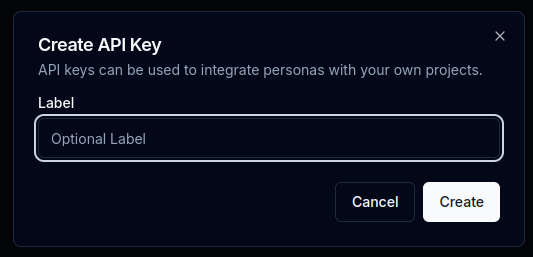 Click "Create" and your new API key will be shown to you. Remember to save it somewhere safe as you will not be able to access it later.
You will be prevented from closing the dialog until you have clicked the "Copy" button.
Click "Create" and your new API key will be shown to you. Remember to save it somewhere safe as you will not be able to access it later.
You will be prevented from closing the dialog until you have clicked the "Copy" button.
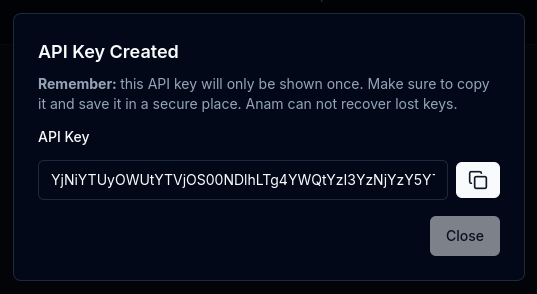
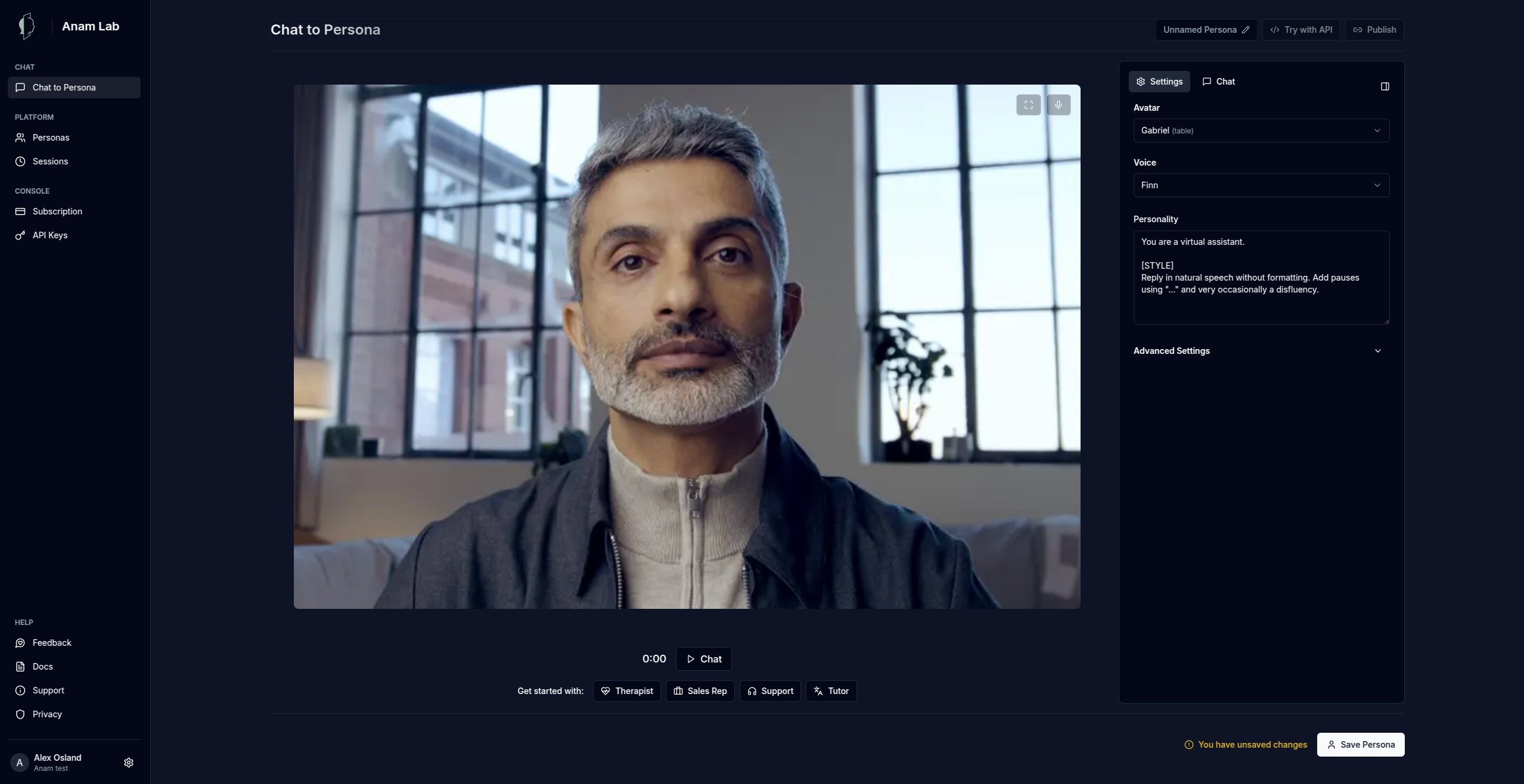 ### Name and Description
Click the "Unnamed Persona" button in the top bar to give your persona a name and description.
### Name and Description
Click the "Unnamed Persona" button in the top bar to give your persona a name and description.
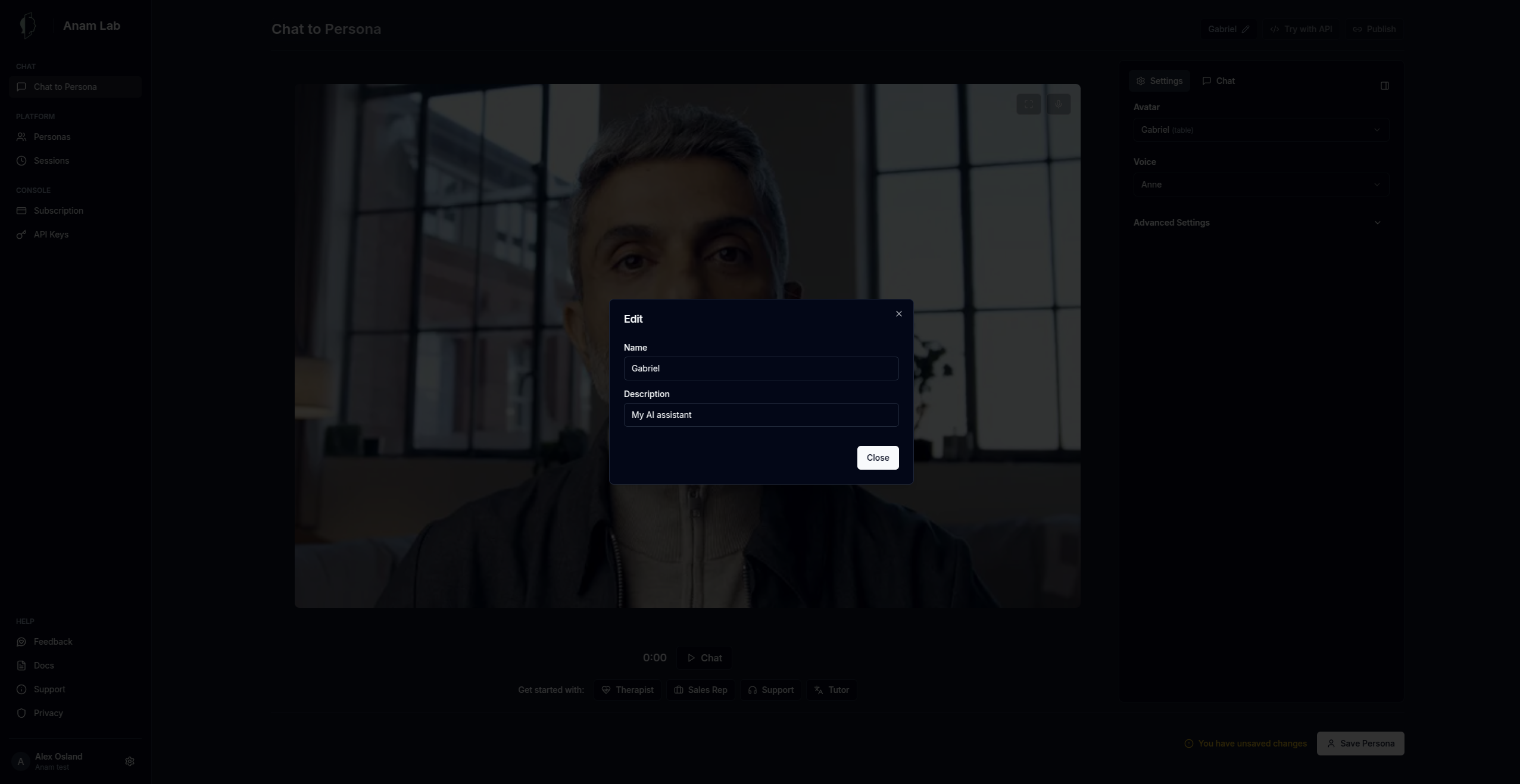 ### Avatar and voice
The avatar is the visual representation of the persona. Changing the avatar will alter the persona's appearance. The voice controls how the persona speaks.
You can select from a range of included avatars and voices depending on your plan.
### Avatar and voice
The avatar is the visual representation of the persona. Changing the avatar will alter the persona's appearance. The voice controls how the persona speaks.
You can select from a range of included avatars and voices depending on your plan.
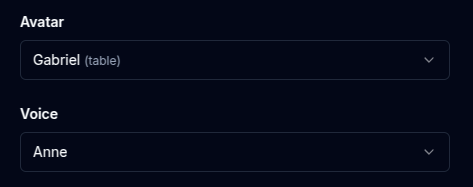 ### Personality
The personality defines the persona's brain. It is the persona's knowledge base and instructions for how to respond to user input. Try to clearly define the persona's role and how it should respond to user input.
### Personality
The personality defines the persona's brain. It is the persona's knowledge base and instructions for how to respond to user input. Try to clearly define the persona's role and how it should respond to user input.
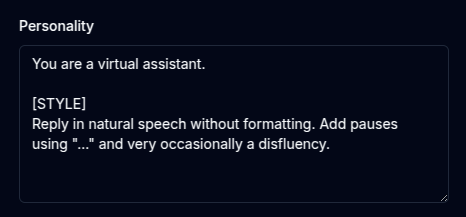 ### Confirm
Once you've filled in all the fields, click "Save Persona" to create your persona. You can chat with it right away by clicking the "Chat" button.
### Confirm
Once you've filled in all the fields, click "Save Persona" to create your persona. You can chat with it right away by clicking the "Chat" button.
 ### Using your custom persona
Once you've created your persona you can integrate into your application by using the Persona ID with the Anam SDK. From the chat interface, click "Try with API" to see an example of how to create a session token using the persona ID.
### Using your custom persona
Once you've created your persona you can integrate into your application by using the Persona ID with the Anam SDK. From the chat interface, click "Try with API" to see an example of how to create a session token using the persona ID.
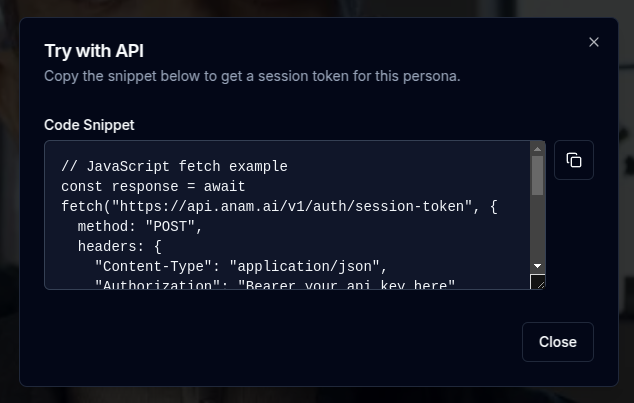 # Create your own persona
Source: https://docs.anam.ai/concepts/personas/create-your-own/overview
Learn how to create and customize your own Anam persona
Custom personas allow you to build personas that are tailored to your specific use case. You can create your own custom personas visually using the Anam Lab web UI or programmatically using your API key with the Anam API.
# Create your own persona
Source: https://docs.anam.ai/concepts/personas/create-your-own/overview
Learn how to create and customize your own Anam persona
Custom personas allow you to build personas that are tailored to your specific use case. You can create your own custom personas visually using the Anam Lab web UI or programmatically using your API key with the Anam API.